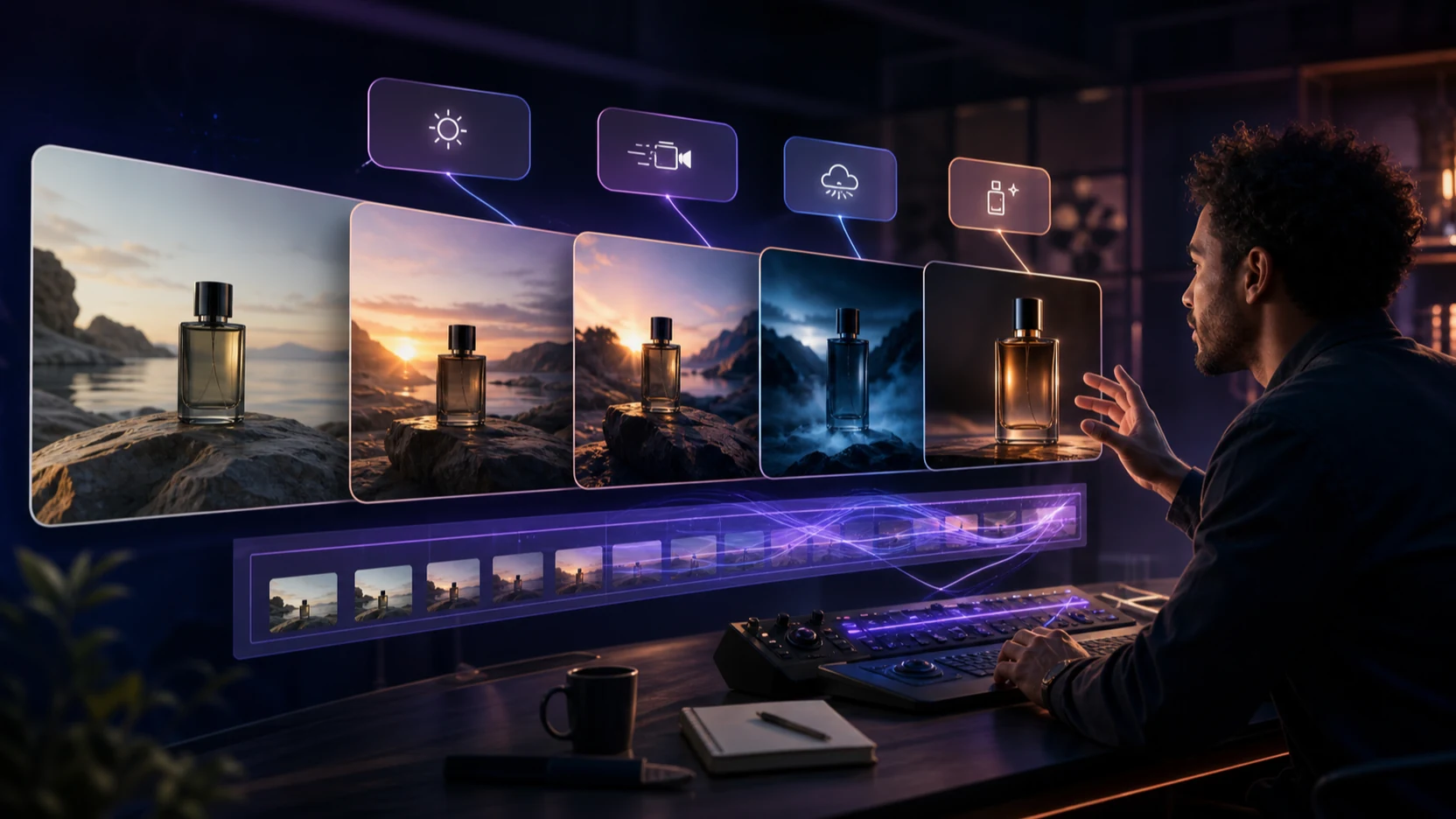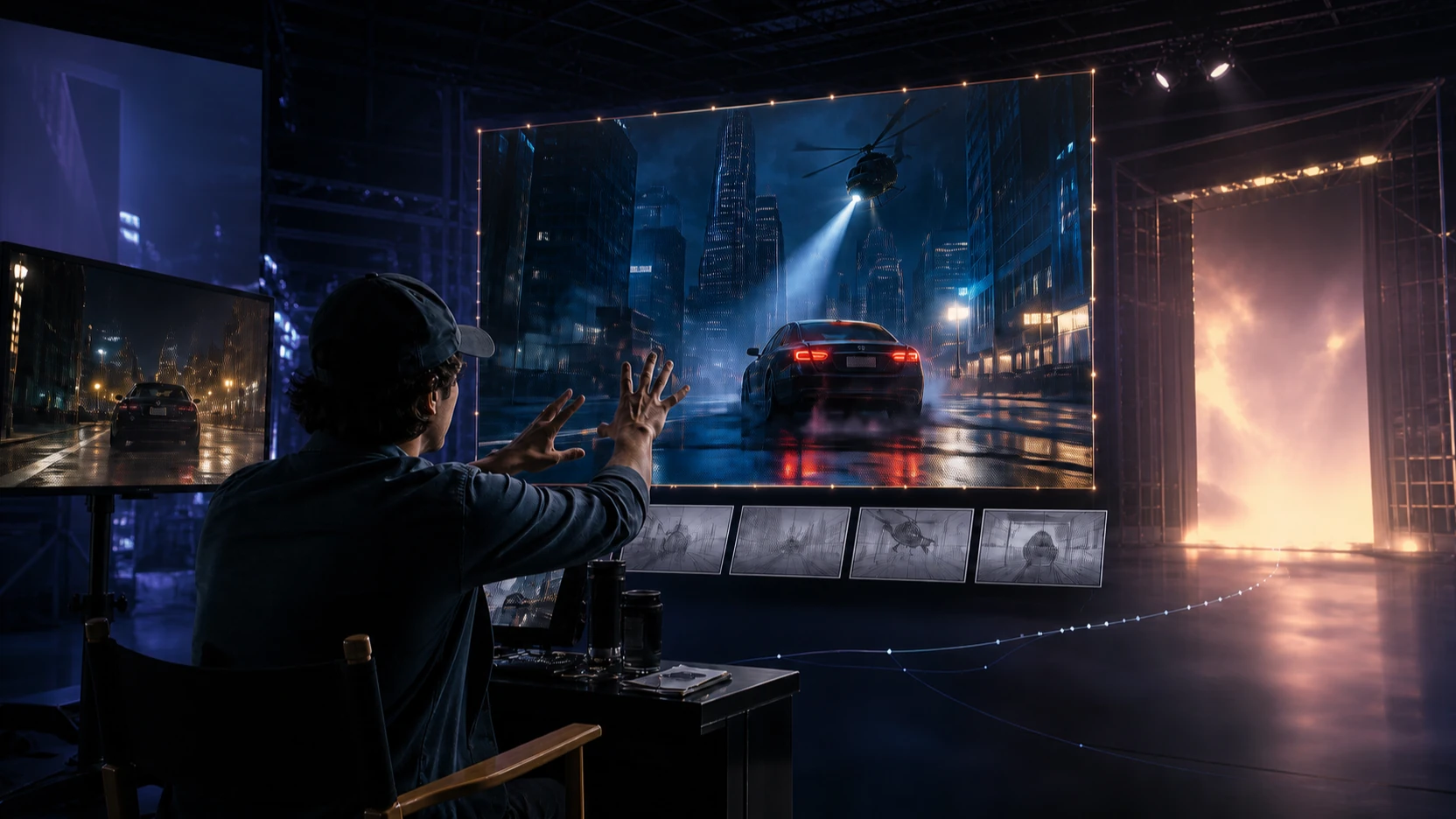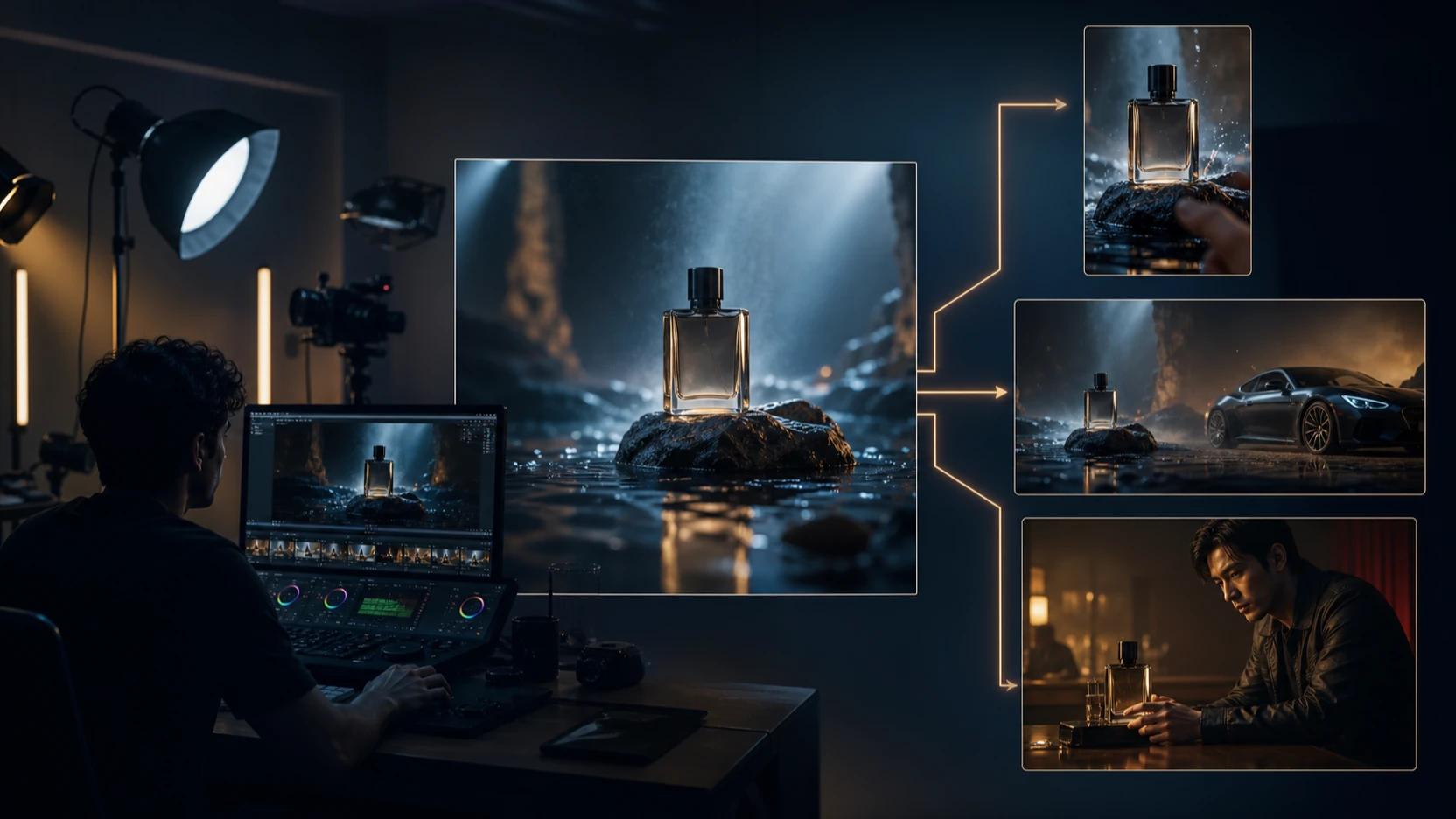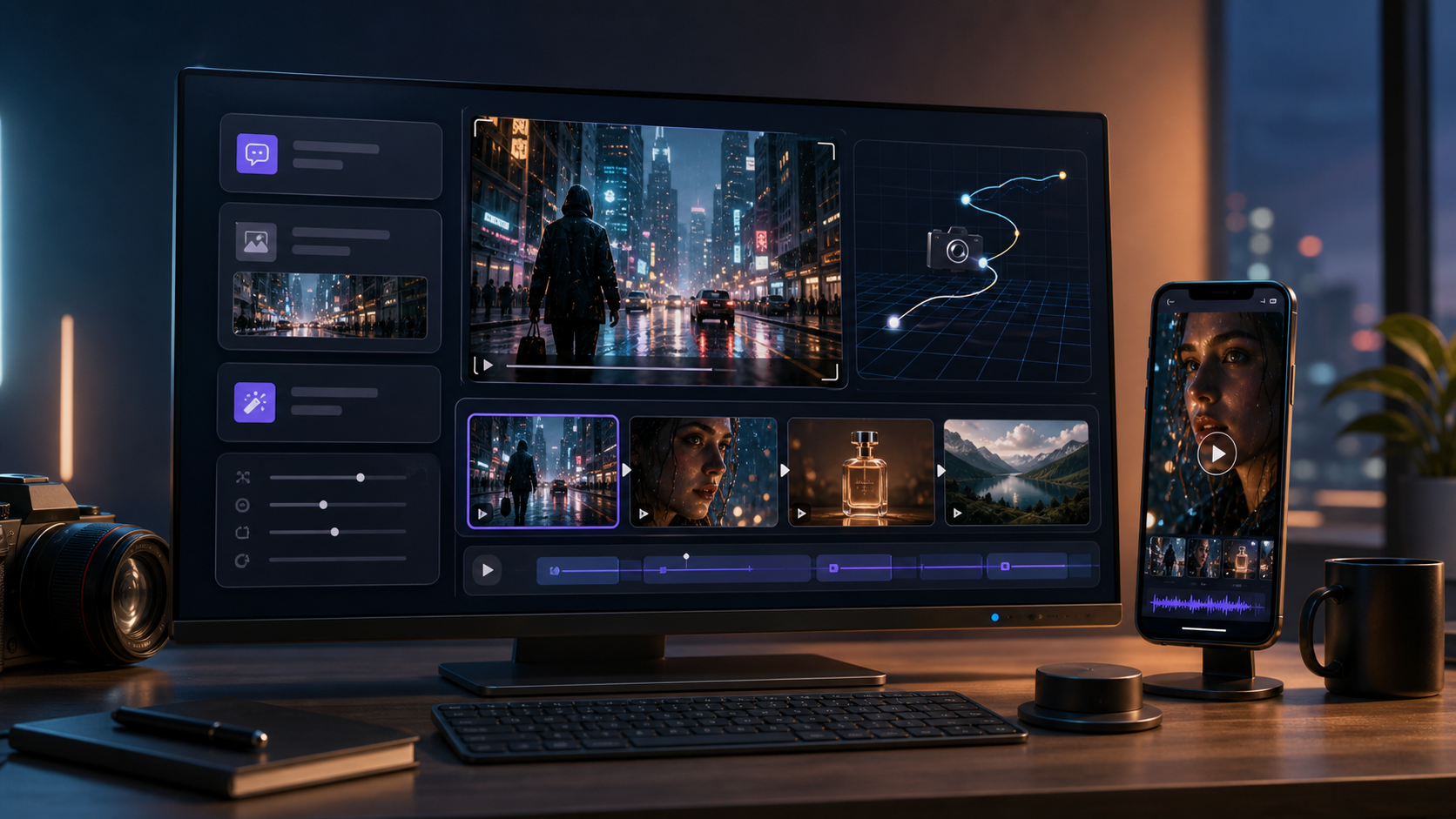
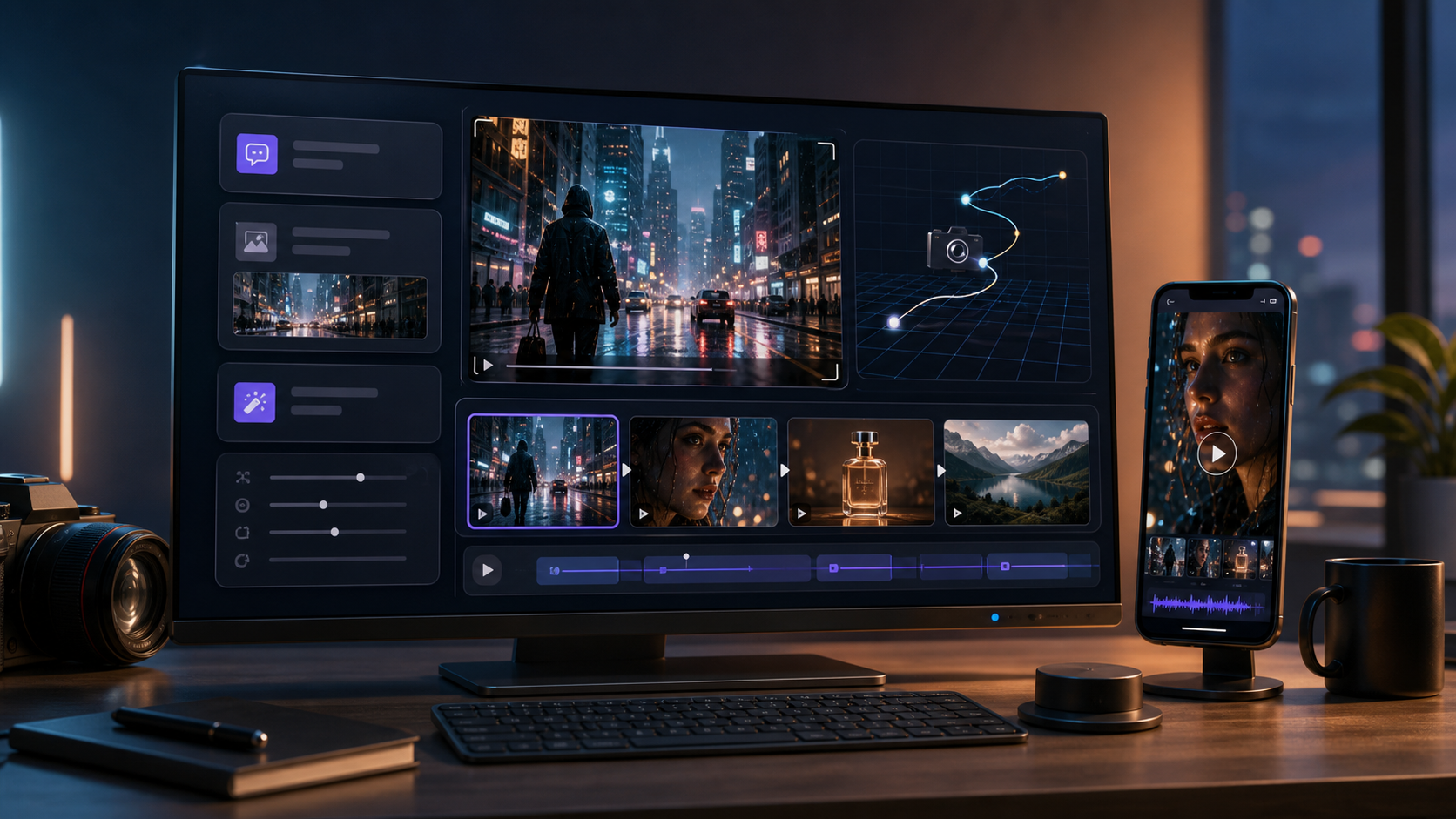
The Kling 3.0 AI Video Generator on VideoWeb AI is built for creators who want more cinematic AI video generation without turning every project into a full production pipeline. It supports practical controls for text and image workflows, including image upload, start and end frame guidance, prompt optimization, audio-enabled generation, duration, ratio, and public/private output settings.
This guide explains how to use Kling 3.0 on VideoWeb AI for cinematic clips, image-to-video scenes, more controlled motion, and prompt workflows that are easier to refine. It also explains when to use related VideoWeb tools such as the general AI video generator, Kling 2.6 AI Video Generator, Kling O1, Seedance 2.0, and Veo 3.1.
Quick Summary
Use Kling 3.0 when you want an AI video generator for cinematic clips with stronger visual direction, image-to-video control, and prompt refinement. The best Kling 3.0 AI video workflow starts with a clear visual brief, adds an image or start/end frames when you need consistency, uses Optimize Prompt for cleaner wording, sets ratio and duration for the target platform, then generates and revises the motion.
What Is Kling 3.0 on VideoWeb AI?
Kling 3.0 is a model option on VideoWeb AI for creators who want cinematic text-to-video and image-to-video generation. The tool page positions Kling 3.0 around AI video creation with prompt input, image guidance, start/end frame support, audio options, duration selection, and ratio settings, which makes it useful for short cinematic clips, product visuals, creator videos, social ads, and concept previews.
The main advantage of using the Kling 3.0 AI Video Generator through VideoWeb AI is workflow clarity. Instead of thinking only about the model, you can think in production steps: choose input type, describe the shot, decide whether you need audio, set duration and aspect ratio, then generate variations.
If you are new to AI video, start with one simple scene. If you already use a Kling AI video generator workflow, Kling 3.0 is most useful when you want better shot direction, cleaner image-to-video results, or more controlled motion from a reference frame.
How to Use Kling 3.0 AI Video Generator Step by Step
The most reliable way to use Kling 3.0 is to treat each generation like a short scene brief. A good prompt tells the model what the subject is, where the scene happens, how the camera moves, what mood the clip should have, and what should not change.
1. Choose Kling 3.0 on VideoWeb AI
Start from the Kling 3.0 AI Video Generator page. This keeps the workflow focused on the model you want instead of forcing you to select it later from a general tool.
If you are still exploring models, the broader AI video generator is useful for general creation because it supports wider text and image workflows across different models. Use the dedicated Kling 3.0 page when you already know you want a Kling 3.0 video generation guide-style workflow.
2. Add an image when visual consistency matters
Use image input when the subject needs to stay recognizable. This is useful for product videos, character concepts, architecture shots, fashion previews, food clips, and brand visuals. A text-only prompt can create a strong scene, but an image gives the model a clearer starting point.
For example, upload a product photo and prompt:
Turn this product image into a cinematic 9:16 video. The product sits on a marble bathroom counter as morning light moves softly across the scene. Slow push-in camera, realistic reflections, premium beauty ad mood, no packaging changes.
This kind of Kling AI image-to-video workflow is especially useful when product appearance matters more than wild creative variation.
3. Use start and end frame control for directed motion
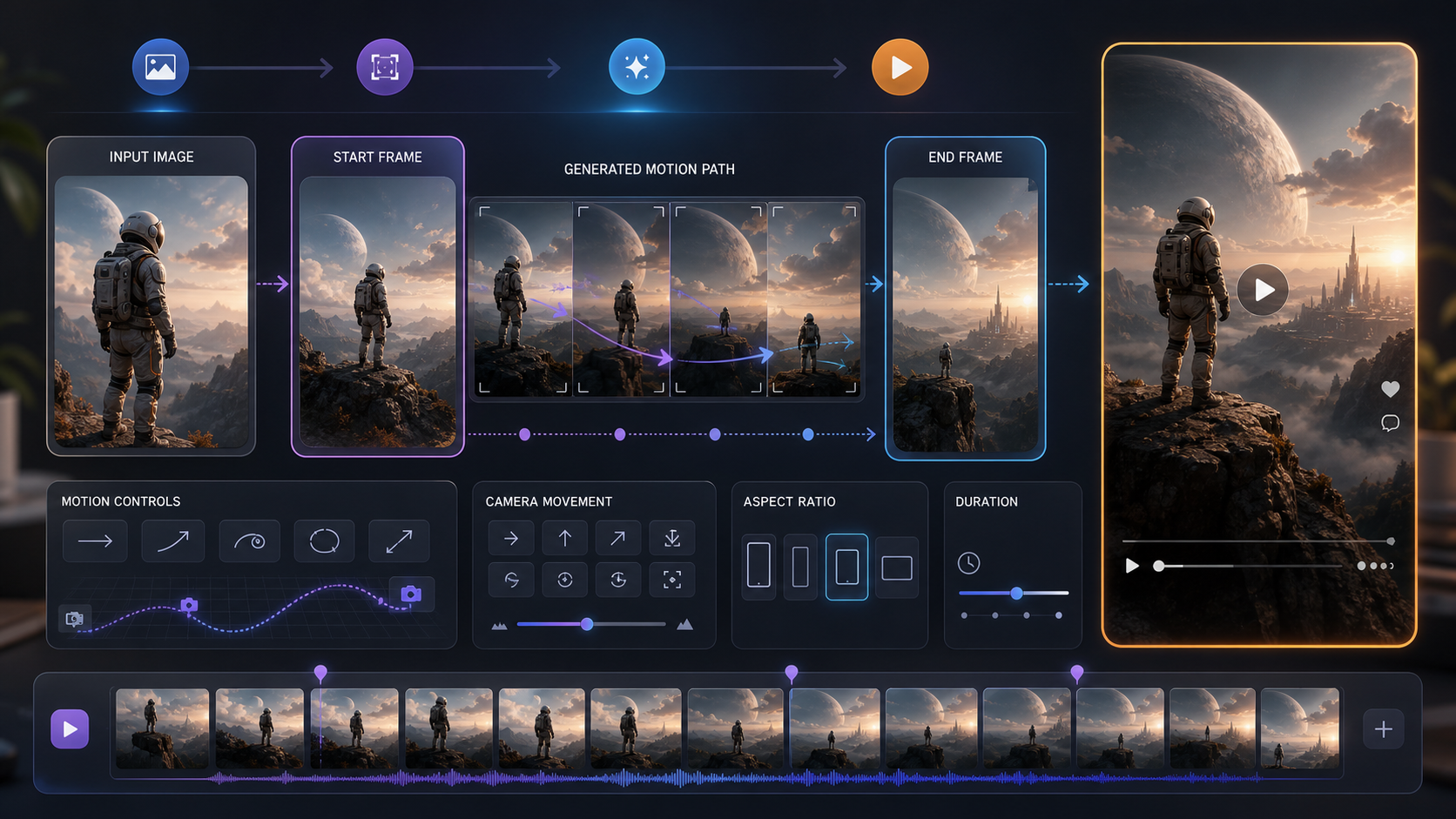
Start/end frame control is useful when the motion needs a destination. A start frame can define where the clip begins, while an end frame can guide where the shot should land. This gives the model a clearer path than a single still image.
Use start and end frames for transformations, camera moves, product reveals, before/after concepts, fashion turns, environment changes, or scene transitions. For example, your start frame might show a closed product box, while the end frame shows the product arranged on a desk. The prompt should describe how the motion connects those frames.
Keep the transition realistic. If the start and end frames are too different, the model may struggle to create clean movement. For more controlled motion, use related framing, similar lighting, and a simple camera direction such as "slow dolly in," "gentle pan right," or "smooth orbit around the product."
4. Write a prompt that describes the shot, not just the idea
A strong Kling AI text-to-video guide starts with shot language. Instead of writing "make a cinematic shoe ad," describe the scene:
Cinematic close-up of a black running shoe on wet pavement at sunrise. Slow low-angle tracking shot from heel to toe, soft mist, realistic reflections, shallow depth of field, premium sports commercial look, no text, no logo changes.
This gives Kling 3.0 more usable direction. Include the subject, environment, camera movement, lighting, style, and constraints. If you want the result to feel cinematic, do not rely only on the word "cinematic." Name the visual choices that create that feeling.
5. Use Translate and Optimize Prompt when helpful
If you write better prompts in another language, use Translate when the interface offers it. Translation can help align your description with the model's expected prompt language while still letting you think naturally.
Use Optimize Prompt when your prompt is too rough, too short, or missing visual structure. Prompt optimization can help turn a plain idea into a clearer generation instruction. Still, review the optimized prompt before generating. Make sure it preserves important details such as product color, character identity, camera direction, and what should not change.
6. Enable audio when sound helps the scene
Kling 3.0 on VideoWeb AI includes an Enable Audio option in the workflow. Use audio when the sound contributes to the clip: footsteps, city ambience, product handling, pouring liquid, crowd energy, or cinematic atmosphere. For silent visual loops, product shots, or clips that will later receive music and voiceover, leaving audio off may be cleaner.
Audio-enabled generation is most useful when the video concept includes clear physical actions or a scene with recognizable ambience. Keep the sound prompt simple and aligned with the image: "soft cafe ambience," "subtle product handling sounds," or "rain and distant traffic."
7. Set duration and ratio for the final platform
Duration and ratio should be chosen before generation because they shape the shot. A short duration works well for a single action: a product reveal, a camera push-in, a face reaction, or a fast social hook. A longer duration gives more room for atmosphere, camera motion, or a multi-step action.
Use vertical ratios for TikTok, Reels, Shorts, creator ads, and mobile-first product demos. Use horizontal ratios for YouTube, website hero videos, cinematic previews, and presentation clips. Use square or near-square formats for feed posts or cross-platform tests.
8. Toggle Public only when the result can be shared
The Public setting controls whether the generated video may be visible within the platform experience. Keep privacy in mind if you use client assets, unreleased products, personal likenesses, confidential storyboards, or internal campaign concepts.
For commercial work, generate privately first, review the result, then decide what can be shared.
9. Generate, review, and refine motion
After you click Generate, review the result by looking at motion first. Ask whether the camera move is smooth, whether the subject stays consistent, whether the action is readable, and whether the clip fits the intended platform.
If the result is too chaotic, simplify the prompt. If the motion is weak, add a more specific camera instruction. If the product changes, add constraints such as "preserve product shape and packaging." If the clip feels flat, improve lighting, depth of field, and environment details.
Prompt Optimization for Cinematic Kling 3.0 Results
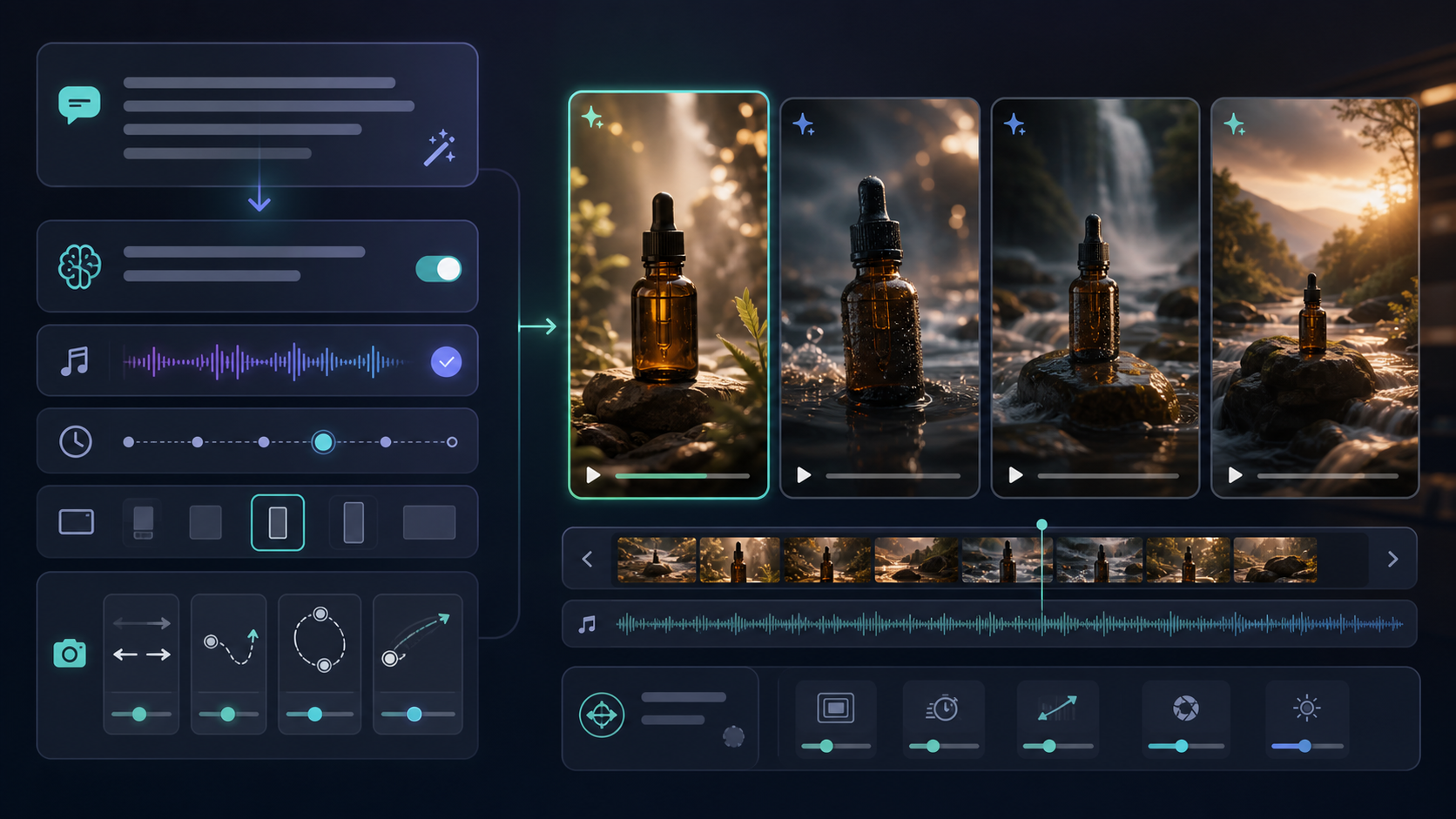
Kling 3.0 responds best to prompts that combine creative direction with practical limits. The prompt should be specific enough to guide the scene but not overloaded with unrelated actions.
Use this structure:
Subject: [main subject]
Scene: [location and atmosphere]
Action: [what happens]
Camera: [movement and framing]
Lighting: [time of day, mood, contrast]
Style: [cinematic, documentary, product ad, social video]
Constraints: [what should stay consistent or be avoided]
Here is a complete example:
Subject: a glass bottle of sparkling water on a cafe table.
Scene: bright outdoor cafe after light rain, soft reflections on the table.
Action: condensation rolls down the bottle as a hand gently places a lemon slice beside it.
Camera: slow push-in from medium shot to close-up, shallow depth of field.
Lighting: natural morning light, soft highlights, realistic shadows.
Style: premium lifestyle product video, clean and cinematic.
Constraints: preserve the bottle shape and label placement, no added text, no warped hands.
For more controlled motion, limit the number of actions. One product move, one camera move, and one clear environment usually works better than a crowded scene with multiple characters, changing weather, text overlays, and fast camera movement.
Kling 3.0 vs Kling 2.6: When to Use Each
Creators often compare Kling 3.0 with the Kling 2.6 AI Video Generator because both belong to the Kling AI video generator family on VideoWeb AI. The practical difference is not just "newer versus older." It is about matching the model to the job.
Use Kling 3.0 when you want a more current Kling workflow for cinematic AI video generation, image-to-video direction, start/end frame control, and controlled motion. It is a strong default when the goal is polished visual output.
Use Kling 2.6 when you specifically want to compare outputs, reuse a familiar Kling 2.6 audio video generation workflow, or test whether an earlier model gives you a more stable result for a certain prompt. Sometimes an older model can be useful when a team has already built repeatable prompt patterns around it.
For a fair Kling 3.0 vs Kling 2.6 test, keep the prompt, input image, duration, and ratio the same. Compare subject consistency, motion smoothness, audio behavior, camera control, and how much prompt editing each result needs.
Related VideoWeb Tools to Use With Kling 3.0
VideoWeb AI works best when you choose the tool around the creative job, not only the model name.
Use the AI video generator when you want a flexible AI video generator with image and text input across general creation workflows. It is a good starting point if you are comparing models or building a multi-model production process.
Use the Kling AI video generator when you want a broader Kling AI video generator tutorial path, including Kling AI text-to-video and Kling AI image-to-video workflow ideas beyond a single version page.
Use Kling O1 for natural-language video editing when the task is less about generating a new clip and more about editing or adjusting an existing idea through instructions.
Use Seedance 2.0 for fast creator workflows, especially when you need quick short-form social concepts, UGC-style videos, or rapid ad variations.
Use Veo 3.1 for premium cinematic video generation when you want to compare high-end cinematic output and have a project where visual polish matters more than speed.
Ready-to-Copy Kling 3.0 Prompts
Use these prompts as starting points and adjust the subject, platform, ratio, and duration.
Cinematic product reveal
Cinematic product reveal of [product] on a dark reflective surface. Slow push-in camera, soft rim light, shallow depth of field, subtle mist in the background, premium commercial look. Preserve product shape and packaging, no text overlays, no logo changes.
Image-to-video product demo
Use the uploaded product image as the reference. Create a 9:16 product demo where the product sits on a clean desk, a hand enters the frame and uses the main feature once, then the camera slowly moves closer. Realistic lighting, smooth motion, preserve product details.
Start/end frame transition
Create a smooth transition from the start frame to the end frame. Begin with the product box closed on a table, then move into the final frame where the product is arranged neatly beside the packaging. Slow cinematic dolly movement, realistic shadows, no sudden scene changes.
Travel cinematic clip
Cinematic travel video of a narrow street at golden hour, warm light, soft shadows, gentle handheld forward movement, people in the distance, realistic atmosphere, no text, no extreme camera shake.
Social creator hook
Vertical 9:16 creator-style video for [product]. A creator holds the product near a window and demonstrates one clear benefit in a natural way. Soft daylight, casual handheld camera, realistic movement, clean background, suitable for short social ads.
Audio-enabled scene
Cinematic close-up of coffee being poured into a ceramic cup on a wooden table. Slow camera push-in, warm morning light, steam rising naturally. Enable subtle audio: pouring coffee, soft kitchen ambience, no music, no voiceover.
Common Mistakes to Avoid
The most common Kling 3.0 mistake is trying to make one prompt do too much. A short AI video clip works best when it has one subject, one main action, and one camera idea. If the prompt asks for a product reveal, a character reaction, a location change, a text overlay, a fast zoom, and a background transformation, the model has too many priorities.
Avoid vague cinematic language without shot details. "Make it epic" is less useful than "low-angle tracking shot, dramatic backlight, slow motion dust particles, wide lens, sunset skyline." Also avoid asking for precise text unless the tool is specifically designed for reliable text rendering, because AI video text can be inconsistent.
For product and brand clips, always include preservation instructions. Say "preserve packaging details," "do not change label placement," or "keep the product color consistent." These constraints help reduce unwanted changes.
FAQ
What is the best way to use Kling 3.0 AI Video Generator?
The best way to use Kling 3.0 AI Video Generator is to write a shot-based prompt, add an image when consistency matters, use start/end frames for directed motion, set duration and ratio for the platform, then generate and refine based on motion quality.
Can Kling 3.0 create image-to-video clips?
Yes. Kling 3.0 on VideoWeb AI supports image-based workflows, making it useful for product visuals, character references, fashion scenes, and cinematic concepts where the first frame or reference image matters.
Is Kling 3.0 better than Kling 2.6?
Kling 3.0 is the newer guide focus for cinematic workflows, but Kling 2.6 can still be useful for comparison, familiar prompt behavior, or specific audio video generation tests. For real projects, compare both with the same prompt and settings.
Does Kling 3.0 support audio?
The VideoWeb AI Kling 3.0 workflow includes an Enable Audio option. Use it when scene sounds help the clip, such as ambience, product handling, footsteps, or environmental audio.
Which VideoWeb tool should beginners start with?
Beginners can start with the AI video generator for general creation or go directly to the Kling 3.0 AI Video Generator if they specifically want a Kling 3.0 AI video workflow.
Recommended Reading
For more VideoWeb AI workflows, read:
- Kling 3.0: Latest Updates + How to Use It on VideoWeb AI
- Vidu Q3 AI vs Kling 3.0: Which AI Video Model Should You Use on VideoWeb AI?
- Higgsfield AI Motion Control with Kling 3.0: How It Works, How Good It Is, and How to Get Clean Directed Movement
- VideoWeb AI Video Generator 2026: One Hub, Every AI Video Workflow
- How to Easily Generate Professional AI Videos with Kling AI: A Complete Guide
People also read:
- Veo 3.1 Video Generation Guide: How to Create Cinematic Clips
- Seedance 2.0 Prompt Tips for More Human, Realistic AI Video
- How to Use DreamMachine AI's AI Video Generator: A Practical Guide for Text and Image Workflows
- Kling 3.0 Review: Is It the Best AI Video Generator Yet in 2026?
- How to Use the AI Music Video Generator: A Detailed Guide from Song to Video
Conclusion
The Kling 3.0 AI Video Generator is most useful when you treat it like a compact production workflow: define the shot, add image guidance when needed, use start/end frames for motion control, optimize the prompt, choose audio only when it helps, and set duration and ratio before generating. Start with the Kling 3.0 AI Video Generator for cinematic clips, then use VideoWeb AI's related tools when you need general generation, Kling 2.6 comparison tests, natural-language editing, fast creator videos, or premium cinematic model comparisons.