Motion control is one of those features that sounds like a cheat code: “Upload a motion reference and your generated character will move like that.” In reality, it can absolutely boost realism and repeatability—but only if you feed it the right reference and you treat it like a controllable workflow, not a one-click miracle.
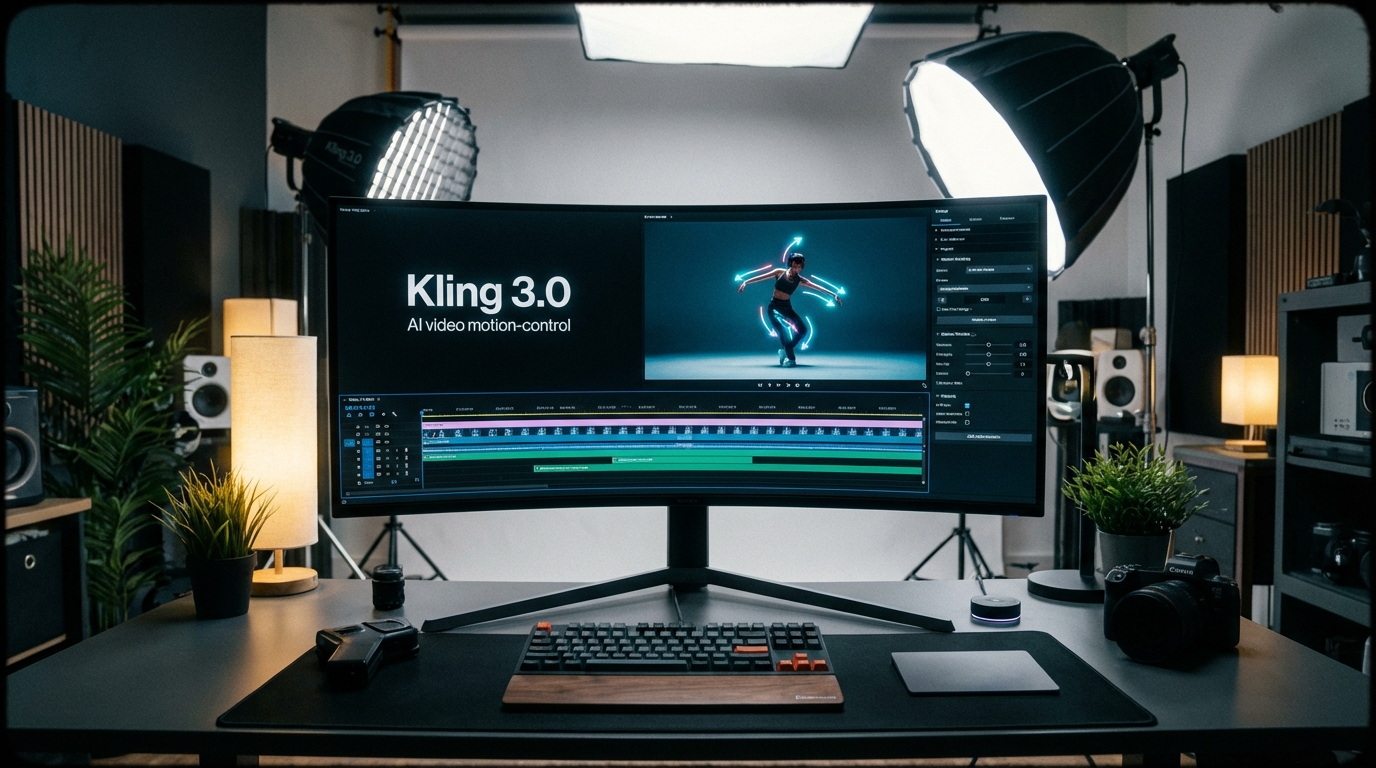
In this viewer-first guide, we’ll break down motion control inside Higgsfield AI when it’s powered by Kling 3.0 AI, what motion control can (and can’t) do, and the exact setup habits that make results look intentional. Then we’ll end with a simple recommendation for creators who want a clean, model-first workflow: Use Kling 3.0 on VideoWeb AI.
What “motion control” means in Higgsfield AI (powered by Kling 3.0 AI)
Normally, prompt-based video generation asks the model to invent movement—how someone walks, gestures, reacts, or turns. That’s why outputs can feel random, floaty, or hard to reproduce.
Motion control changes the game by letting you provide a motion reference clip (a real performance, dance, acting beat, or movement loop). Kling 3.0 AI then tries to follow the reference’s timing and body mechanics while rendering your chosen subject and style.
If you’ve struggled to get repeatable gestures with pure prompts, motion control is one of the most practical upgrades you can try—especially if your goal is “do the same performance again, but with a different character/style.”
When this article uses Kling 3.0 keywords, they all point to the same destination: Kling 3.0 AI video model.
What you can control (and what you still can’t)
Motion control is not a full animation rig. Think of it like giving the generator a “performance track” to follow.
What usually improves
- Action fidelity: the rhythm and overall pose sequence stays closer to the reference.
- More believable timing: fewer random pauses, less odd acceleration.
- Repeatable performance: useful for consistent brand gestures, mascot loops, or recurring character beats.
If you want directed movement without obsessing over prompt micro-edits, motion control is often the shortest path—especially when paired with a disciplined Kling 3.0 motion control workflow.
Where limitations still show up
- Hands + object interaction: pouring, twisting caps, finger precision, and tight hand close-ups can glitch.
- Fast spins / occlusions: motion blur and limbs crossing can confuse the model.
- Wild camera movement: shaky reference footage can produce unstable, jittery outputs.
So yes—motion control helps keep the performance “spine,” but it doesn’t guarantee perfect anatomy, collisions, or physics.
“How is it?” A realistic way to judge motion control quality
Instead of asking “is it good,” test it like you’d test a camera tool: repeat small experiments and watch for stability.
Test A: Action fidelity
Does the generated motion hit the same beats as the reference? You’re looking for posture changes at the right moments.
Test B: Identity stability
Does the face/outfit drift mid-motion? This is the real pain point when you need character continuity.
Test C: Physics plausibility
Watch for foot sliding, warped joints, cloth/hair behaving like jelly, or objects phasing through hands.
Test D: Camera feel
Motion can be accurate but still look “fake” if the camera language is chaotic. Try prompts that specify Kling 3.0 cinematic camera moves (stabilized tracking, slow dolly-in, tripod) and see whether the output stays grounded.
Quick setup checklist (this is where most people win or lose)
If motion control results look bad, it’s usually not because “the model is broken.” It’s almost always the reference clip or the lack of locked constants.
1) Pick one goal
Choose one: dance, acting, athletic movement, product handling, or a simple walk cycle. Trying to do everything at once is the fastest route to chaos.
2) Choose a “clean” motion reference
A great reference is:
- full-body visible (for full-body motion)
- stable framing (avoid shaky handheld)
- consistent lighting
- minimal background clutter
- not too fast
3) Lock your constants (ID block)
Write a short block you’ll reuse every iteration:
- character identity (age, hair, outfit, signature accessory)
- environment (location, time of day)
- camera style (tripod, stabilized tracking, handheld subtle)
This simple habit is one of the best ways to improve Kling 3.0 character consistency across takes.
Step-by-step: using motion control in Higgsfield AI with Kling 3.0
Step 1 — Choose your base approach: text-first or image-first
If you’re exploring ideas and identity doesn’t matter much, start with Kling 3.0 text-to-video style prompting.
If you need a specific character/mascot/product to stay stable, start with image guidance so your subject is less likely to drift.
Step 2 — Add the motion reference (match the tempo)
Pick a reference that matches the type of movement you want. Calm acting reference for acting. Full-body dance reference for dance. If the reference is chaotic, the output will inherit that chaos.
Step 3 — Write a motion-directed prompt (shorter is often better)
Think “constraints,” not poetry.
A reliable prompt spine looks like this:
- Subject ID block (repeat every time)
- Environment constant
- Action constraint: “match the motion reference timing and gestures”
- Camera constraint: “tripod” / “stabilized tracking” / “no fast pans”
- Style + quality
If your workflow is image-guided, you can frame it as Kling 3.0 image-to-video with motion control layered on top.
Step 4 — Iterate like an editor (one variable at a time)
The fastest way to improve results is controlled iteration:
- Pass A: keep everything, change only camera constraints
- Pass B: keep camera, simplify wardrobe/environment
- Pass C: keep everything, slow the reference pace
This turns rerolling into a workflow you can actually learn from.
Prompt patterns that work well for motion control (mini templates)
Template A: Acting performance (stable, expressive)
Best for: monologues, reactions, subtle gestures.
[Character ID]. [Environment]. Match motion reference timing and gestures. Camera: close-up to medium, stabilized, minimal movement. Lighting: soft and consistent. Style: realistic.
Template B: Dance / athletic (full-body clarity)
Best for: choreography, sports moves, walk cycles.
Full-body framing. Match the motion reference precisely. Camera: tripod or stabilized tracking, no fast pans. Lighting: even, high visibility. Style: realistic motion, clean background.
Template C: Product handling (hands-on but controlled)
Best for: UGC ads, product demos, rotations/reveals.
Keep product shape and label consistent. Match reference hand timing. Camera: slow push-in, stabilized. End on a clean hero frame.
If you’re building a short sequence, combine motion control with a Kling 3.0 multi-shot storyboard mindset: one shot for reveal, one for handling, one for an end-frame CTA.
Common problems (and fixes that usually work)
Feet sliding / skating
- Use a slower reference
- Keep full-body in frame
- Reduce stylized lighting that hides ground contact
Face drift during motion
- Re-state the ID block
- Avoid mixing multiple art styles
- Prefer image-guided identity
Jittery limbs / unstable anatomy
- Avoid ultra-fast gestures
- Simplify wardrobe patterns
- Keep background clean
Floaty or chaotic camera
- Explicitly request tripod or stabilized tracking
- Avoid camera swings in the reference
- Add lens language (35mm, shallow depth of field)
These tweaks tend to improve Kling 3.0 video quality tips faster than rewriting everything.
When motion control is the right tool
Motion control shines when performance is the point:
- Dance and choreography
- Acting beats and character reactions
- Athletic movement and walk cycles
- Brand mascots that must repeat a specific gesture
- UGC-style ads where natural hand motion matters
Because these are usually short formats, motion control pairs nicely with Kling 3.0 1080p cinematic clips—clean outputs that feel directed, not accidental.
Motion control vs pure prompting (quick comparison)
Motion control wins when you need repeatability and realistic timing.
Pure prompting wins when you’re brainstorming fast, don’t want extra inputs, or you’re chasing abstract vibes where exact movement doesn’t matter.
A solid workflow is often: ideate with prompts, then lock the best idea with motion control.
Recommendation: Use Kling 3.0 directly on VideoWeb AI
If you like the idea of motion control but you want a cleaner, model-first workflow for quick iteration, it can be simpler to run the model directly.
Start here: Use Kling 3.0 on VideoWeb AI.
And if you’re evaluating generation quality rather than platform UX, this is the same destination with different wording: Try the Kling 3.0 video generator.