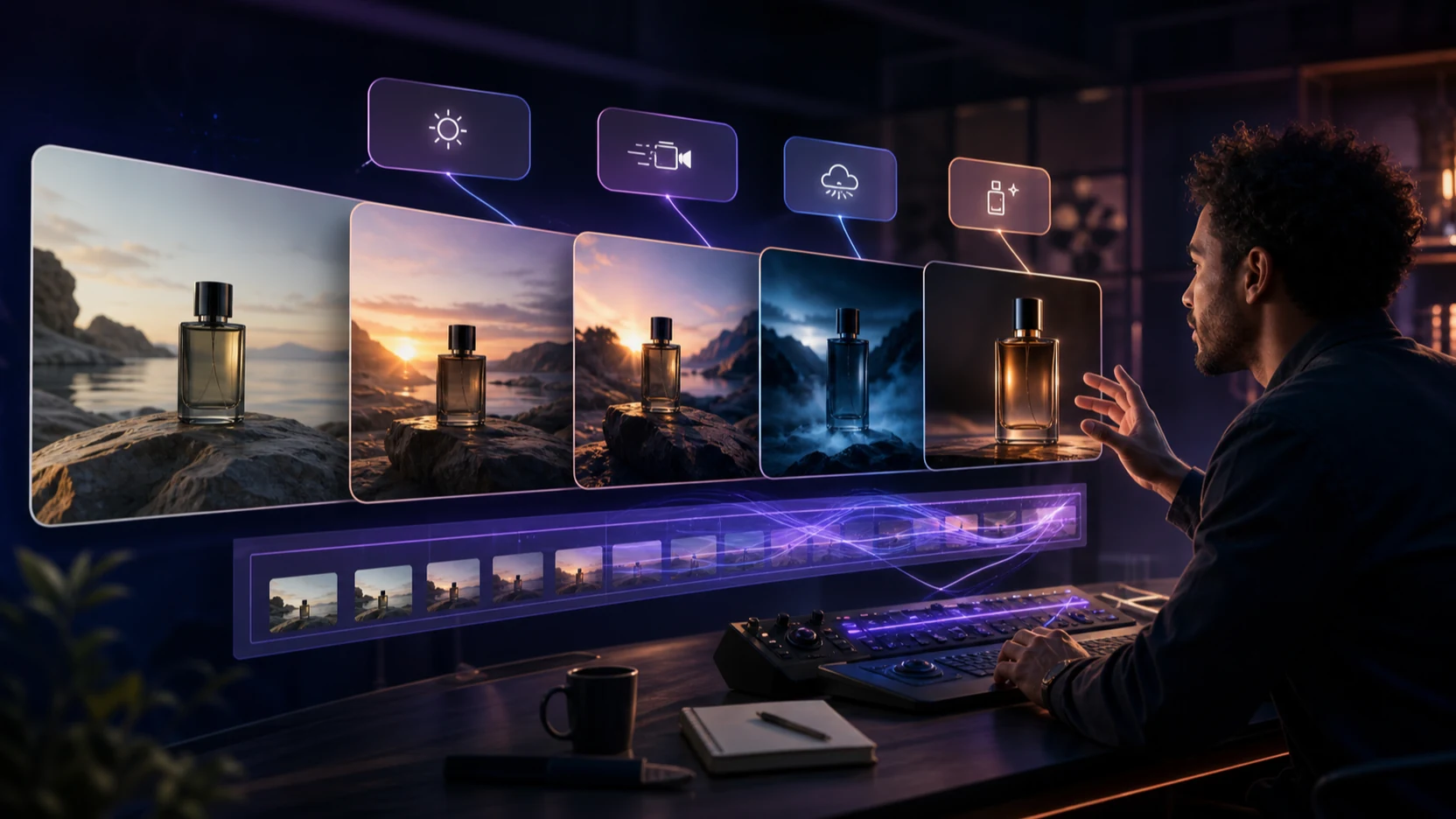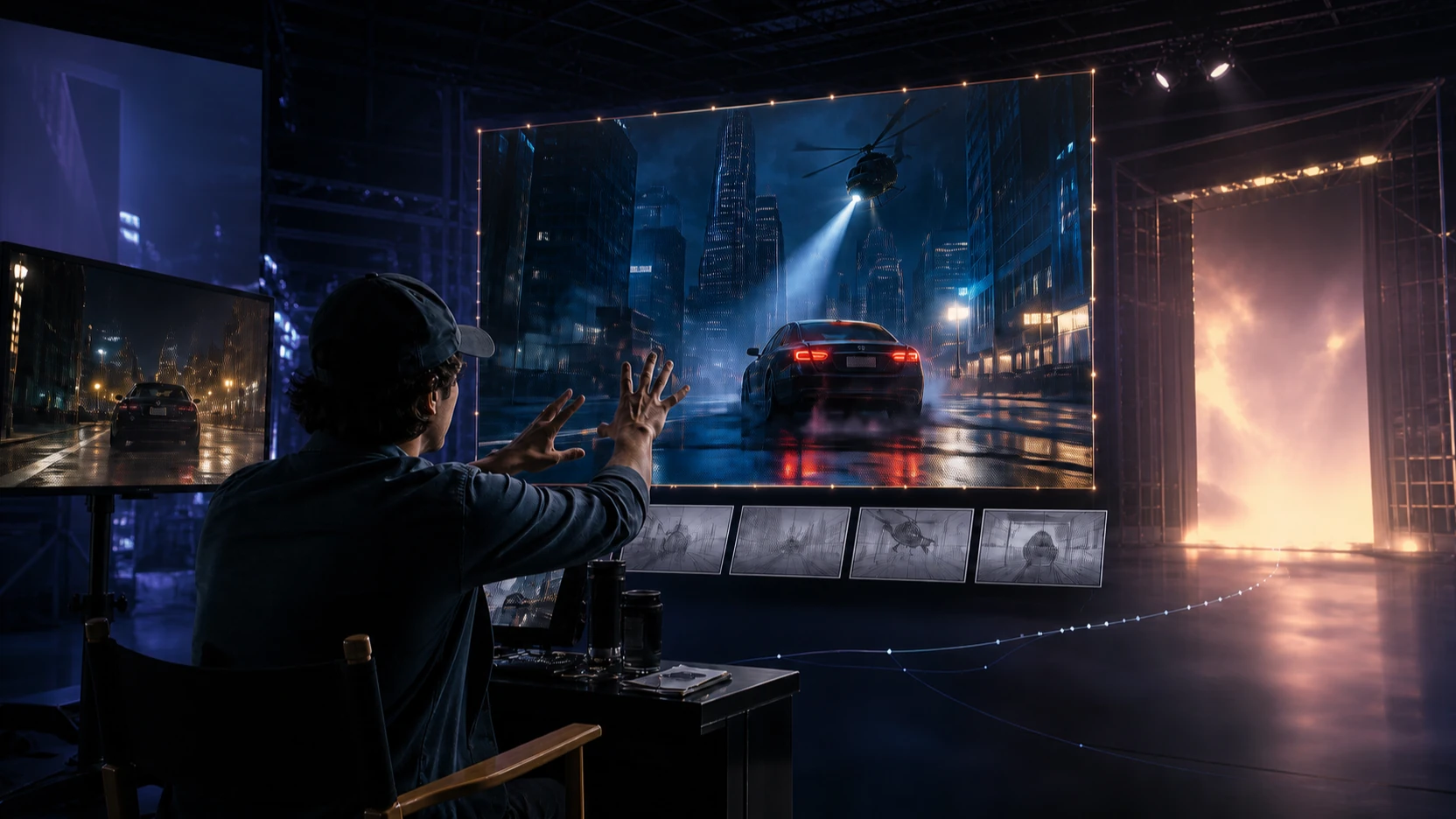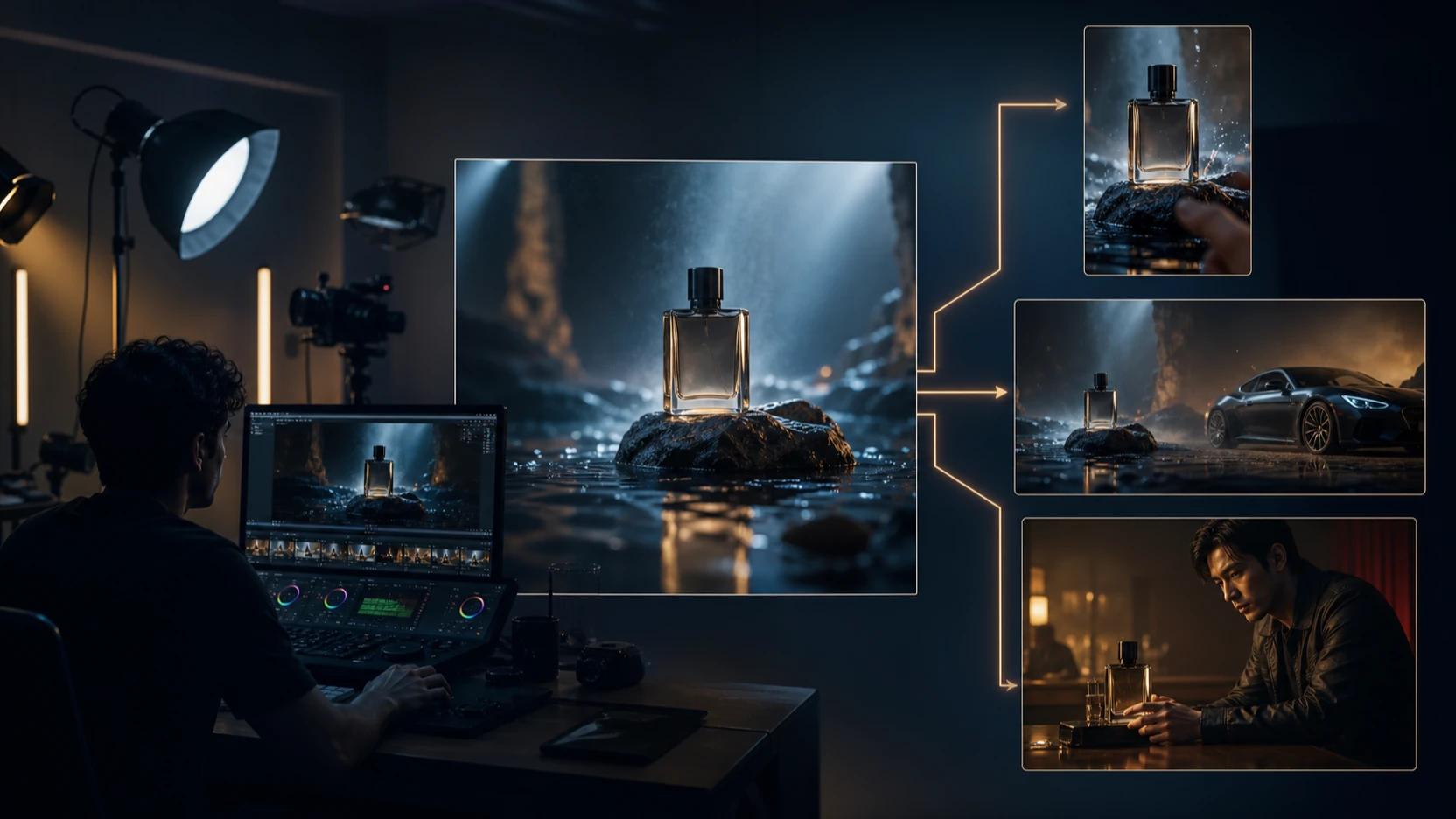
If you are comparing Veo 2 vs Veo 3 vs Veo 3.1 vs Omni Fast, the practical answer is simple: choose the model based on the video workflow you need to repeat. VideoWeb AI is a useful place to compare them because it gives creators direct access points for Google Veo 2 Video Generator, Google Veo 3 Video Generator, Google Veo 3.1 Video Generator, and Gemini Omni AI Video Generator, plus broader workflows for AI Video Generator, Image to Video, Text to Video, Photo to Video, and 4K Video Generator.
This guide is for creators, filmmakers, ecommerce teams, UGC advertisers, social media managers, educators, agencies, and beginners who want to choose the right Google-style AI video model without testing blindly.

Quick Answer: Which Model Should You Use?
Choose Veo 2 for stable drafts, Veo 3 for audio-driven short clips, Veo 3.1 for stronger creative control, and Omni Fast / Gemini Omni for flexible multimodal editing. The best model is not universal; it depends on whether your project starts from text, an image reference, an existing video clip, audio direction, or a fast remix idea.
For simple draft testing, start with Veo 2 on VideoWeb AI. For polished social clips with stronger realism and native audio direction, move to Veo 3 on VideoWeb AI. For reference-guided shots, transitions, character consistency, and more professional scene planning, use Veo 3.1 on VideoWeb AI. For fast mixed-input editing, style changes, and conversational remixing, test Gemini Omni on VideoWeb AI.
Before production, confirm the live VideoWeb model page for current pricing, credit cost, duration, resolution, audio support, aspect ratios, watermark behavior, commercial-use terms, privacy settings, and regional availability.

Why Compare Veo 2, Veo 3, Veo 3.1, and Omni Fast on VideoWeb AI?
Creators compare these models because AI video work now covers more than one prompt-to-clip task. A social editor may need fast vertical drafts, an ecommerce team may need product consistency, a filmmaker may need multi-shot continuity, and an educator may need clean visuals with reliable timing.
VideoWeb AI makes the comparison practical because it places multiple video workflows in one ecosystem: model-specific pages, Text to Video, Image to Video, Photo to Video, and higher-resolution publishing routes through 4K Video Generator. That helps creators test the same idea across models instead of judging from isolated demos.
Use the comparison around seven criteria: input style, prompt adherence, motion stability, subject consistency, audio strength, editing flexibility, and best production use case.

Veo 2: Best for Stable Drafts and Simple Cinematic Tests
Veo 2 is the practical baseline when you want a clean text-to-video draft before spending time on more controlled production. It fits simple cinematic prompts, early concept testing, straightforward social ideas, and lower-pressure experiments.
Use Veo 2 when the prompt has one subject, one setting, and one main camera move. For example, a sunrise lake shot, a simple product reveal, or a fictional traveler walking through a street can all work as early baseline tests. The goal is not to force every detail into the first prompt; it is to learn whether the core idea has enough motion, composition, and visual clarity to continue.
Veo 2 is less suitable when the project depends on native audio, complex transitions, reference-image control, or multi-shot continuity. In those cases, start with Veo 2 only as a rough draft, then move the winning concept to Veo 3, Veo 3.1, or Omni Fast.

Veo 3: Best for Native Audio and Polished Short-Form Video
Veo 3 is the stronger choice when the clip needs realism, sound direction, dialogue-style moments, product ambience, or a more finished short-form feel. Google has positioned Veo 3 around video generation with native audio, which makes it more useful for social clips, product demos, music-driven scenes, and cinematic moments where sound is part of the creative result.
Choose Veo 3 for TikTok, Reels, Shorts, product teasers, UGC-style product moments, and short cinematic scenes where audio makes the clip easier to publish. A product shot with steam, a café ambience, footsteps in a hallway, or a simple line of dialogue can give the model a clearer creative target.
The main prompt habit is to keep the scene short and focused. Ask for one clear action, one camera move, and one audio direction. That gives Veo 3 a better chance to produce a polished result without overloading the clip.

Veo 3.1: Best for Professional Control and AI Filmmaking
Veo 3.1 is the best fit when a project needs stronger consistency, reference-image workflows, richer audio-visual alignment, frame-to-frame planning, transitions, and more professional storytelling control. Google describes Veo 3.1 as an update for richer audio, improved realism, and more narrative control in creative tools such as Flow, and VideoWeb AI gives creators a direct Veo 3.1 model page to test that direction.
Use Veo 3.1 when the output has to preserve a product shape, maintain a character outfit, continue lighting logic between shots, or move from one frame to another with cleaner timing. It is the model to test for cinematic product ads, AI filmmaking, reference-guided image-to-video, and short stories where the same subject must stay recognizable.
For best results, treat Veo 3.1 like a shot-planning model. Give it the subject, reference direction, action, camera, lighting, audio, and continuity goal. The more specific the scene control, the more useful the test becomes.

Omni Fast / Gemini Omni: Best for Multimodal Editing and Fast Remixing
Gemini Omni is the most flexible choice when the workflow starts from mixed inputs rather than a single text prompt. Use Omni Fast / Gemini Omni when you want to combine text, images, video clips, audio, and reference-based editing into faster creator iteration.
This matters for teams that already have material: a product clip, a reference image, a brand color direction, a soundtrack, or an existing scene that needs a variation. Instead of regenerating from scratch each time, Omni-style workflows are better for editing, remixing, changing background direction, adjusting style, preserving a subject, or turning a concept into several campaign versions.
Choose Omni Fast / Gemini Omni for flexible video editing, video-to-video changes, multimodal prompt tests, fast social remixes, and creator workflows where the brief evolves through repeated adjustments.

Side-by-Side Comparison Table
Use this table as a practical studio guide, not a fixed technical spec sheet. Live model details can change, so verify the active VideoWeb page before committing a budget or production workflow.
| Model | Best For | Input Style | Audio Strength | Motion / Consistency | Editing Flexibility | Best Creator Type | Recommended VideoWeb Page |
|---|---|---|---|---|---|---|---|
| Veo 2 | Baseline text-to-video, simple drafts, cinematic tests, lower-pressure experiments | Mostly prompt-first drafts | Basic audio planning; verify live support | Good for simple scenes with one action | Lower than newer models | Beginners, prompt testers, early-stage creators | Google Veo 2 Video Generator |
| Veo 3 | Audio-first short video, product demos, realistic social clips, cinematic scenes | Text-to-video and image-to-video style workflows | Stronger native audio direction | Better realism for polished short clips | Moderate; best when prompt is focused | Social editors, ecommerce marketers, UGC advertisers | Google Veo 3 Video Generator |
| Veo 3.1 | Professional storytelling, stronger control, reference-guided videos, transitions | Text, image/reference, frame-to-frame style planning | Stronger audio-visual alignment direction | Best fit for consistency and continuity tests | High for controlled shot planning | Filmmakers, agencies, product teams, advanced creators | Google Veo 3.1 Video Generator |
| Omni Fast / Gemini Omni | Multimodal generation, video editing, reference-based changes, fast remixing | Text, image, video, audio, conversational-style edits | Useful when audio is part of the remix brief | Depends on source material and edit scope | Highest for mixed-input iteration | Agencies, product teams, editors, fast content teams | Gemini Omni AI Video Generator |
The shortest decision rule is this: Veo 2 is the draft model, Veo 3 is the audio-social model, Veo 3.1 is the control model, and Omni Fast is the remix model.

How to Test All Four Models on VideoWeb AI
The best way to compare these models is to run the same idea across all four, then judge results by the job you actually need to publish. Start with a simple concept, keep the same subject and scene, and change only the model route.
Use this testing sequence:
- Open VideoWeb AI and choose the model page you want to test.
- Start with Veo 2 for a baseline draft.
- Move the same concept to Veo 3 if audio, realism, or short-form polish matters.
- Test Veo 3.1 when you need reference control, transitions, or more consistent subject behavior.
- Use Gemini Omni when you have mixed inputs or want to remix an existing direction.
- Compare prompt adherence, motion stability, subject consistency, camera control, audio quality, generation speed, retry needs, and best publishing use case.
For production work, also check the current VideoWeb AI pricing page, terms, privacy policy, model page details, and export behavior before scaling.

Best Workflows: Social Clips, Product Ads, Cinematic Scenes, UGC, and AI Filmmaking
Different creators should test different model paths. A short-form editor needs speed and strong first-frame clarity, while a product team needs stable product shape and clean lighting. A filmmaker needs continuity, and an agency may need remixable versions for several campaign angles.
For social clips, start with Veo 2 or Veo 3, then move to Veo 3.1 if the character or product must stay consistent. For product ads, use Veo 3 when sound and realism matter, and Veo 3.1 when reference preservation is the priority. For UGC-style drafts, keep prompts natural: handheld energy, window light, short spoken-review mood, and simple motion.
For AI filmmaking, Veo 3.1 is the stronger studio choice because it fits multi-shot planning, transitions, and continuity. For fast remixing, Gemini Omni is more practical when the workflow starts with an image, a video clip, an audio cue, or a direction such as “keep the camera motion but change the setting.”

Prompt Formulas and Copy-Ready Examples
Use one prompt concept across all four models so the comparison is fair. The goal is to test what changes when the model changes, not what happens when every prompt is rewritten from scratch.
Reusable comparison prompt formula:
Create a [duration] AI video for [platform/use case]. Subject: [person/product/object/scene]. Setting: [location/background]. Main action: [one clear movement or event]. Camera: [push-in / tracking shot / pan / handheld / static close-up / dolly / aerial shot]. Lighting: [studio / natural daylight / golden hour / neon / cinematic / documentary]. Mood: [premium / playful / dramatic / realistic / UGC / futuristic]. Audio direction: [ambient sound / dialogue / sound effects / silent draft / music mood]. Output should be [16:9 / 9:16 / 4:5] for [YouTube / TikTok / Reels / Shorts / ad / product page / storyboard].
Veo 2 prompt formula:
Create a simple cinematic video draft. Subject: [main subject]. Scene: [clear environment]. Action: [one simple motion]. Camera: [basic camera move]. Lighting: [clear lighting]. Mood: [cinematic / realistic / playful]. Keep the prompt simple and focused so Veo 2 can generate a stable baseline.
Veo 3 prompt formula:
Create a cinematic AI video with audio. Subject: [main subject]. Action: [clear movement]. Camera: [camera movement]. Lighting: [lighting]. Audio: [ambient sound / dialogue line / sound effect / music mood]. Keep the scene focused, realistic, and short enough for a polished output.
Veo 3.1 prompt formula:
Create a polished cinematic video using strong scene control. Subject: [main subject]. Reference direction: [start image / end frame / multiple references / character reference / style reference]. Action: [movement]. Camera: [specific shot direction]. Audio: [dialogue / ambience / sound effect]. Style: [cinematic style]. Preserve subject consistency, lighting logic, and shot continuity.
Gemini Omni / Omni Fast prompt formula:
Create or edit a video using [text / image / video clip / audio] as references. Preserve [subject identity / product shape / character / scene layout / motion pattern / audio mood]. Change [background / camera angle / object / style / timing / expression / sound direction] to [new direction]. Keep the result coherent, editable, and suitable for fast iteration.
Model testing formula:
Use the same concept across Veo 2, Veo 3, Veo 3.1, and Omni Fast. Compare prompt adherence, motion stability, audio quality, character consistency, camera control, editing flexibility, generation speed, and best use case.
Copy these prompt examples:
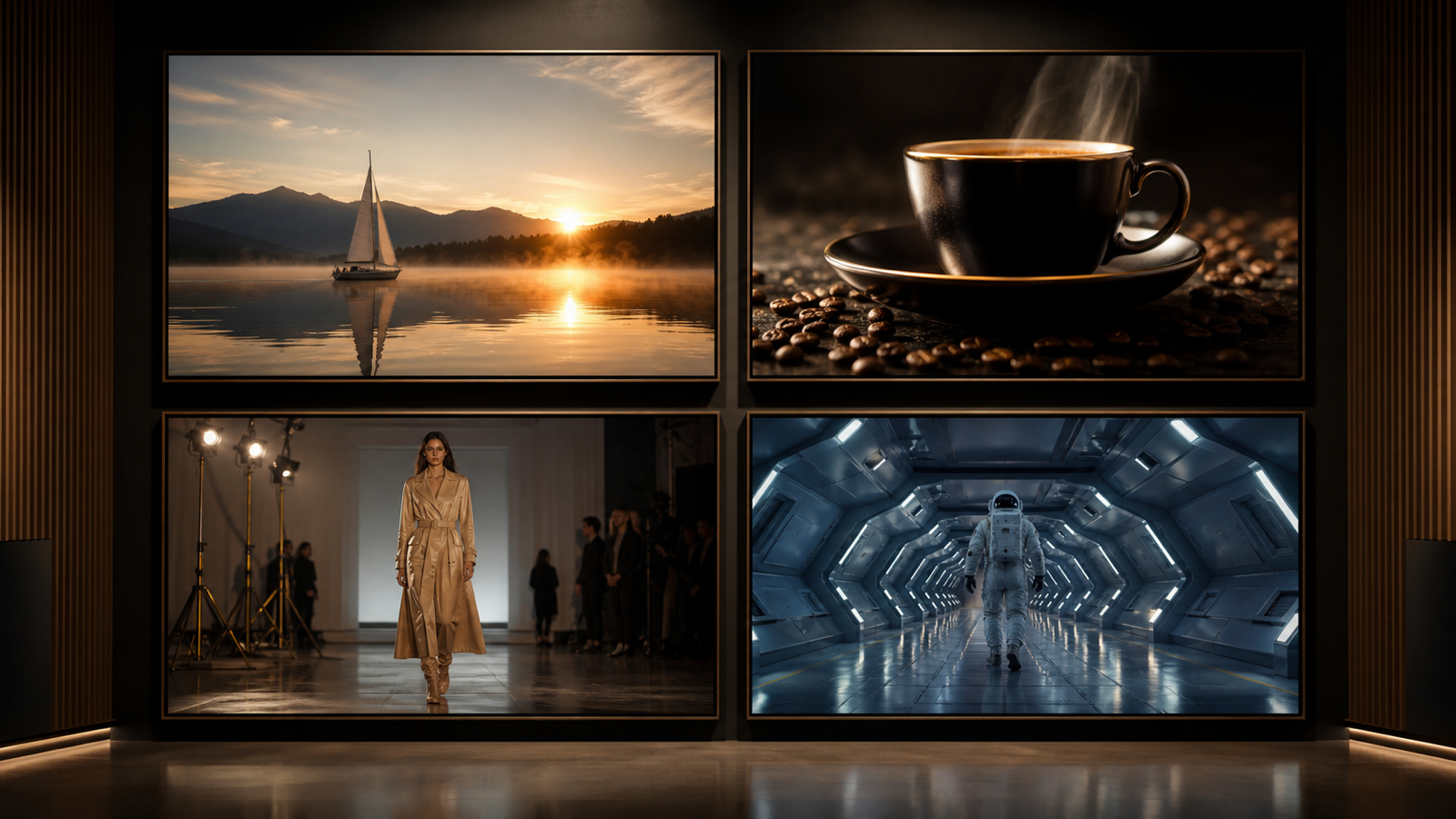
- Veo 2: Create a 6-second cinematic shot of a small sailboat crossing a quiet lake at sunrise. Slow wide camera pan, soft mist, calm water reflections, realistic natural light, 16:9.
- Veo 3: Create an 8-second product teaser for a premium coffee cup on a wooden table. Slow camera push-in, warm morning light, realistic steam, subtle cafe ambience, gentle ceramic clink sound, 16:9.
- Veo 3.1: Use this product image as a reference. Preserve the product shape, label, color, and material. Generate a polished 10-second product ad with a slow orbit camera move, realistic reflections, soft studio sound, and clean background continuity.
- Omni Fast: Use this video clip and text instruction as references. Keep the original camera motion and background, but change the product color palette to silver and blue while preserving lighting and scene composition.
- Veo 2: Create a simple social video draft of a fictional traveler walking through a rainy street. One subject, one camera move, neon reflections, realistic motion, 9:16.
- Veo 3: Create a short cinematic dialogue clip. A fictional chef places a dish on the counter and says, "Fresh from the kitchen." Warm restaurant ambience, realistic steam, soft background sound, 16:9.
- Veo 3.1: Create a two-shot cinematic transition from a quiet office at night to a bright product launch stage. Use frame-to-frame continuity, realistic lighting change, and subtle audience ambience.
- Omni Fast: Edit an existing product video so the background changes from a studio table to a minimalist kitchen scene while keeping the product, camera motion, and shadow direction consistent.
- Veo 3.1: Create a polished TikTok fashion clip. A fictional model walks through a minimalist studio, soft fabric motion, side tracking camera, subtle footstep sound, stable outfit details, 9:16.
- Veo 3: Create a dramatic sci-fi hallway shot with a fictional astronaut walking toward a glowing door. Cinematic camera push-in, low mechanical hum, soft echoing footsteps, 16:9.
- Omni Fast: Use two reference images and one audio cue to create a short video that matches the visual style, character design, and sound mood while keeping the motion smooth and controlled.
- Comparison test: Run the same product ad idea through Veo 2, Veo 3, Veo 3.1, and Omni Fast. Rate each output for motion, audio, consistency, editing control, and best publishing use.

Final Recommendation by Creator Type
Beginners should start with Veo 2 because it gives a lower-pressure way to learn prompt structure, scene simplicity, and baseline motion. Social media managers should test Veo 3 next because native audio direction and realistic short-form scenes can make clips feel more publishable.
Ecommerce teams should compare Veo 3 and Veo 3.1. Use Veo 3 for fast product teasers with ambience, then use Veo 3.1 when product shape, label area, and lighting consistency matter more. Filmmakers and agencies should prioritize Veo 3.1 for controlled storytelling and use Gemini Omni when the brief requires fast remixing from images, video clips, or audio references.
The best practical workflow on VideoWeb AI is to start with Veo 2 for a simple baseline, move to Veo 3 when the idea needs audio and realism, move to Veo 3.1 when the project needs stronger control, and use Omni Fast / Gemini Omni when the workflow needs flexible multimodal editing or fast iterative remixing.

FAQ
Is Veo 3.1 better than Veo 3?
Veo 3.1 is usually the better test when you need stronger control, consistency, reference guidance, transitions, and professional storytelling. Veo 3 can still be the better practical choice for shorter audio-driven clips where speed and polish matter more than complex continuity.
Should beginners use Veo 2 first?
Yes, many beginners should start with Veo 2 because it is easier to use for simple baseline prompts. A clean Veo 2 draft can reveal whether the concept is worth improving before moving to Veo 3 or Veo 3.1.
When should I choose Gemini Omni instead of Veo?
Choose Gemini Omni when the task is closer to multimodal editing than one-shot generation. If you want to use text, images, video clips, and audio references together, or quickly remix an existing direction, Omni Fast / Gemini Omni is the more flexible route to test.
Can I use these models for TikTok, Reels, and Shorts?
Yes, these models can fit short-form workflows when you choose the right aspect ratio, duration, and prompt style on the live VideoWeb AI page. Veo 3 is strong for polished audio-social clips, while Veo 3.1 is better when consistency and shot control are more important.
What should I verify before publishing or scaling?
Verify current VideoWeb AI details for pricing, credits, duration, resolution, audio support, aspect ratios, input modes, reference-image support, export rules, watermark rules, commercial-use terms, privacy settings, and regional availability. These details can change as model pages and platform policies update.

Conclusion
The best answer to Veo 2 vs Veo 3 vs Veo 3.1 vs Omni Fast is workflow-based. Veo 2 is the stable draft route, Veo 3 is the audio-driven short-video route, Veo 3.1 is the professional control route, and Omni Fast / Gemini Omni is the flexible multimodal remix route.
For creators who want one place to compare them, VideoWeb AI is the practical starting point. Test the same concept across Veo 2, Veo 3, Veo 3.1, and Gemini Omni, then choose based on the result you need to repeat: draft, audio clip, product ad, cinematic scene, reference-image animation, or multimodal edit.