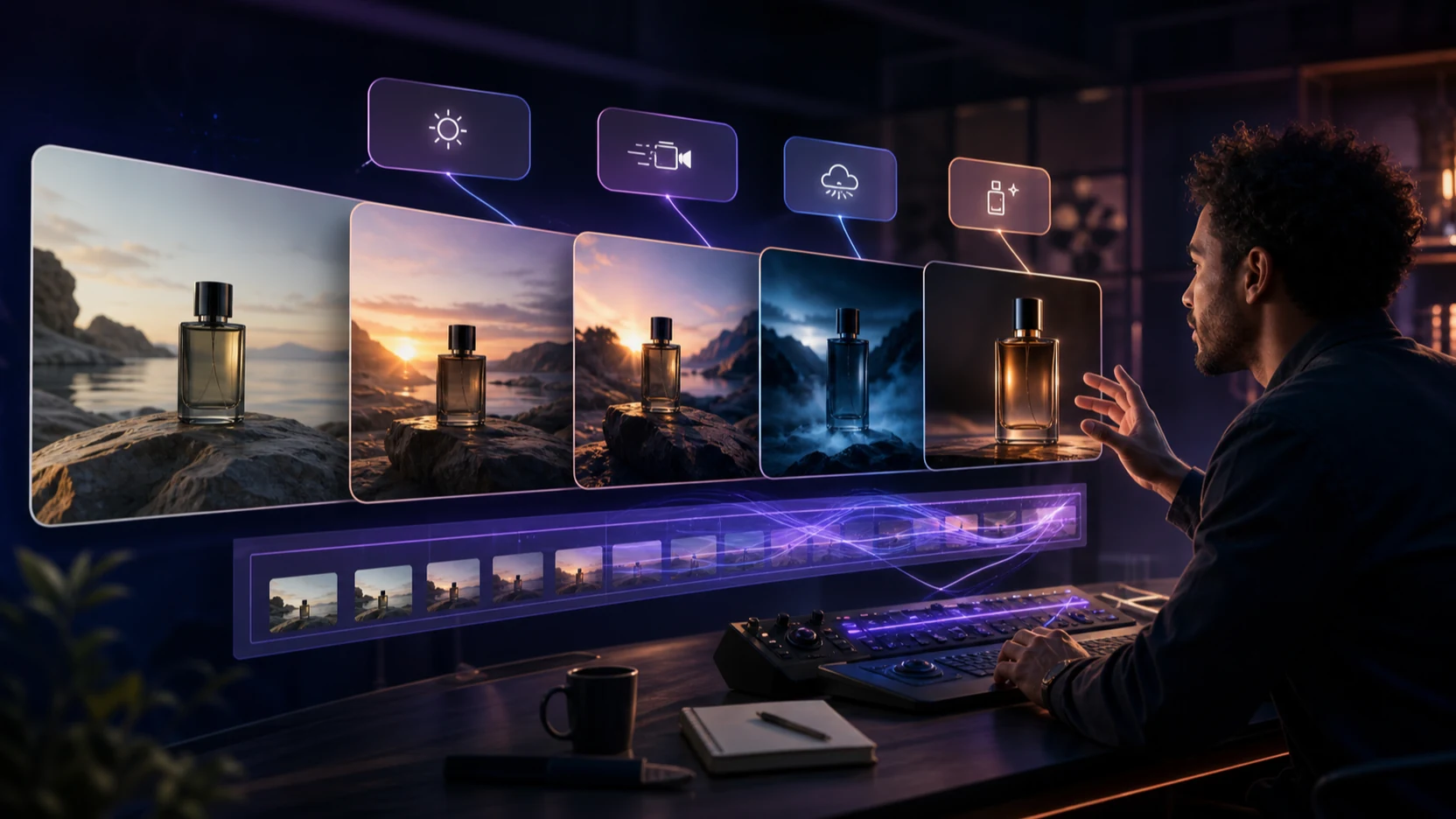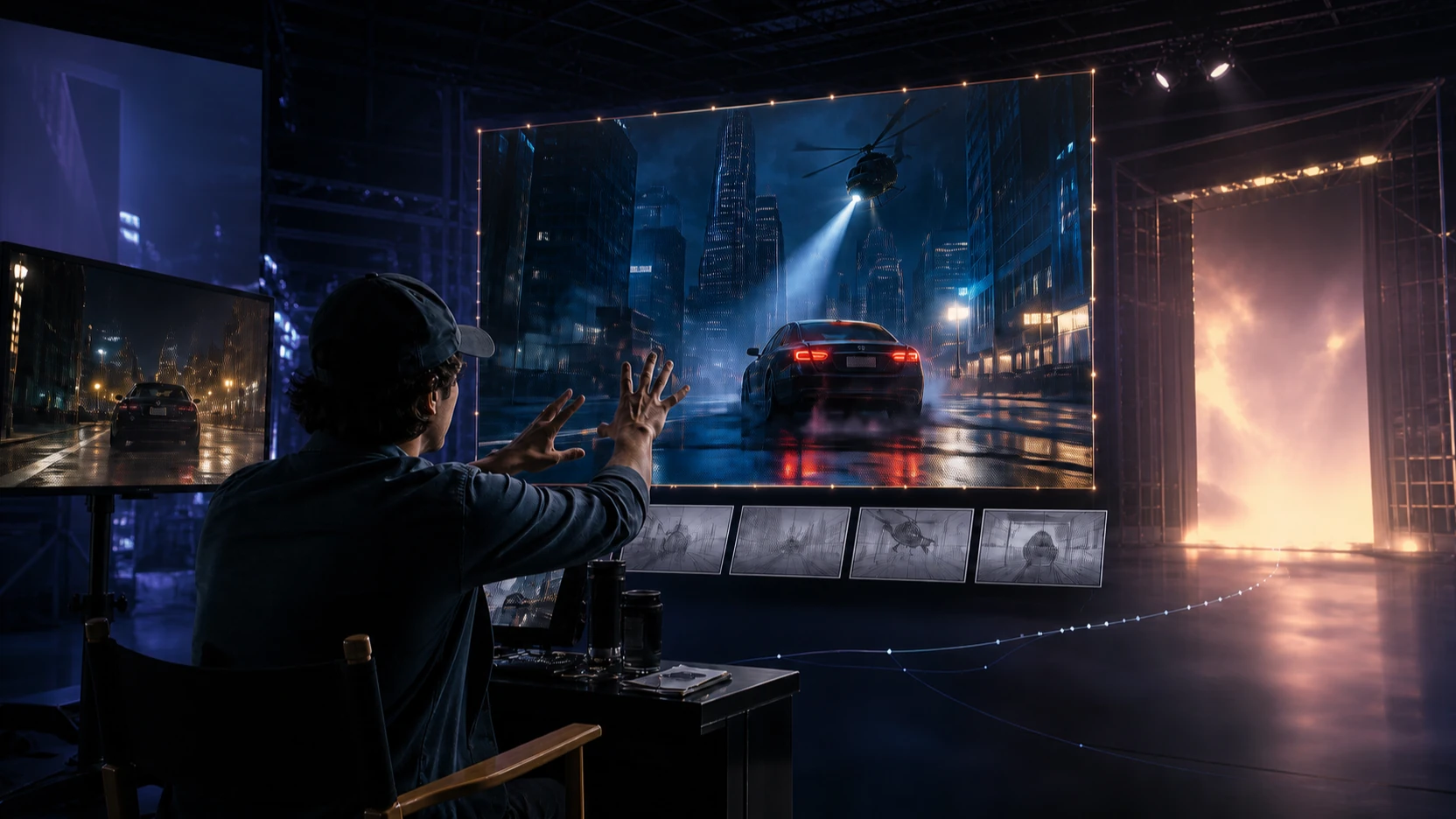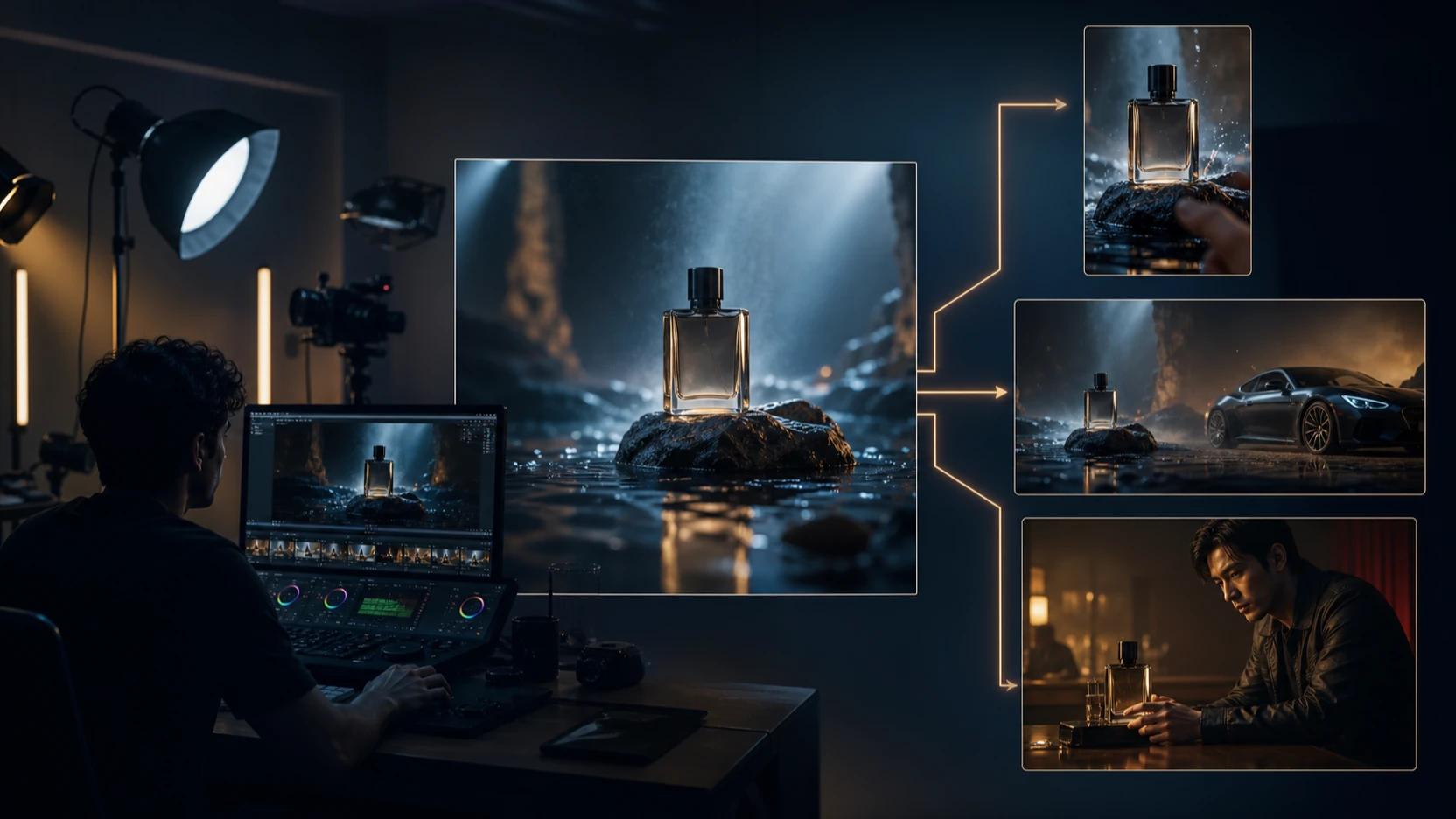
AI video generation has exploded in the past year. Models like Veo3, Kling, and Hailuo are bringing cinematic-quality video to everyday creators, but there’s always been one limitation: text prompts. Writing long, detailed descriptions can feel abstract, and often the results don’t match what you pictured in your mind.
That’s why draw to video with Higgsfield AI is such a breakthrough. Instead of typing out every detail, you can sketch arrows, notes, or simple annotations directly on your starting image—and the AI turns that into motion. It’s intuitive, fast, and designed for creators who want more control over animation without endless prompt tinkering.
Let’s explore what this feature is, how it works, and how you can use it to bring your creative ideas to life.
What Is Higgsfield AI’s Draw to Video?
“Draw to Video” is a tool inside Higgsfield AI that allows you to control motion by drawing directly on the input frame. Imagine uploading an image of a hand holding nothing. With a couple of arrows and the note “cup appears here,” the AI can generate a clip of the hand opening and a drink appearing.
It’s not about replacing prompts completely—style, lighting, or tone can still be described in text—but the heavy lifting of motion design now comes from your sketches.
The result? Creators spend less time writing guesswork prompts and more time actually shaping the video they want.
Why Draw to Video Changes the Game
Most AI video generators require prompt engineering skills: carefully crafted wording, balancing detail with clarity, and testing multiple versions until you get close to your vision.
Higgsfield flips this on its head:
- Visual-first control – Arrows and labels tell the AI exactly how to move objects.
- Fewer iterations – Sketching is often faster and more precise than rewriting text prompts.
- Hands-on creativity – It feels closer to storyboarding or directing a scene, making it approachable even for non-technical users.
This approach is especially powerful for product ads, social clips, and short-form storytelling where motion clarity matters more than abstract text descriptions.
How to Use Draw to Video Step by Step
Here’s how to get started with draw to video with Higgsfield AI:
-
Open the Draw-to-Video interface
Head to the official tool page and log in. -
Upload or generate a starting image
- This could be a product shot, a character illustration, or a still frame from another video.
- Make sure it’s clear and high resolution for best results.
-
Add annotations
- Arrows: Indicate direction and speed of movement.
- Labels/Notes: Write simple cues like “rotate,” “open hand,” or “drink appears.”
- Numbers: Use sequences (1, 2, 3) to show the order of actions.
-
Add overlay images (optional)
- Perfect for product placement or outfit swaps.
- Example: upload a soda can PNG and draw an arrow pointing to the character’s hand.
-
Write a brief prompt (optional)
- Use this to define mood, style, or environment.
- Example: “Cinematic lighting, glossy reflections, futuristic ad style.”
-
Choose an AI model
Higgsfield allows you to select from different back-end models (Veo3, Hailuo, Seedance). Each has unique strengths (see below). -
Generate your video
- Click generate and let the AI process.
- In moments, your static sketch becomes a fully animated clip.
Model Options and Their Strengths
When using Draw to Video, you can select different AI engines for different outcomes. Here’s a breakdown:
-
Veo3
- Known for cinematic realism and smooth motion.
- Best for product ads, lifestyle scenes, and anything requiring polished visual quality.
-
Hailuo 02
- Excels at dynamic, energetic animations.
- Ideal for action shots, dance clips, or sports-related content.
-
Seedance Pro
- Strong in clean, high-resolution outputs.
- Works well for simple loops, short reels, and subtle motion.
This flexibility makes draw to video with Higgsfield AI a versatile tool. You can test different engines without leaving the platform, saving time compared to juggling multiple apps.
Creative Use Cases
The Draw-to-Video feature is already inspiring new types of content. Here are some practical examples:
Product Ads
- Start with a static product shot.
- Use arrows to show rotation, and overlay images for background elements.
- Example: “Smartphone rotates slowly, glowing screen turns on, spotlight reflection sweeps across the surface.”
Dynamic Storytelling
- Upload a character illustration.
- Draw arrows to indicate walking, turning, or interacting with objects.
- Example: A hero raises their sword while the camera pans upward to reveal the castle in the distance.
Social Media Loops
- Bring simple illustrations to life with subtle motion.
- Example: Clouds drifting in the background, text appearing with a bounce, coffee cup steaming gently.
This is where draw to video with Higgsfield AI really shines: combining sketch-level control with cinematic output.
Tips for Best Results
To make sure your videos turn out the way you want, follow these tips:
- Keep arrows clear and simple – Overlapping lines confuse the AI. Use one arrow per motion.
- Limit actions per scene – 1 to 3 movements per clip keep things clean and realistic.
- Use reference images – If you’re swapping objects or outfits, match the style and lighting to your base image.
- Combine sketches with prompts – Use sketches for motion and text prompts for mood/atmosphere.
Powering Up Your Workflow
While Higgsfield’s own platform is powerful, it also integrates with ecosystems like VideoWeb and Flux AI, making it easier to combine with other tools.
For example:
- Use Draw-to-Video for motion.
- Refine outputs in Gemini Flash Edit for texture and detail.
- Generate alternate product versions in Nano Banana AI.
- Compile full ad campaigns with Veo3 cinematic clips.
This interoperability is part of what makes Higgsfield’s approach so appealing—you’re not locked into a single workflow.
Conclusion: Why Draw to Video Is the Future
Traditional prompt-only workflows can feel frustrating. You imagine one thing, but the AI produces something else. With draw to video with Higgsfield AI, that gap between vision and output shrinks dramatically.
By sketching arrows, notes, and overlays, you can literally direct the AI like a storyboard artist or film director. The result is faster iterations, clearer animations, and videos that actually match what you had in mind.
For creators, marketers, and storytellers, Draw-to-Video isn’t just another feature—it’s the next step in AI video generation.
👉 Ready to try it? Visit Higgsfield AI’s Draw to Video tool and bring your sketches to life today.