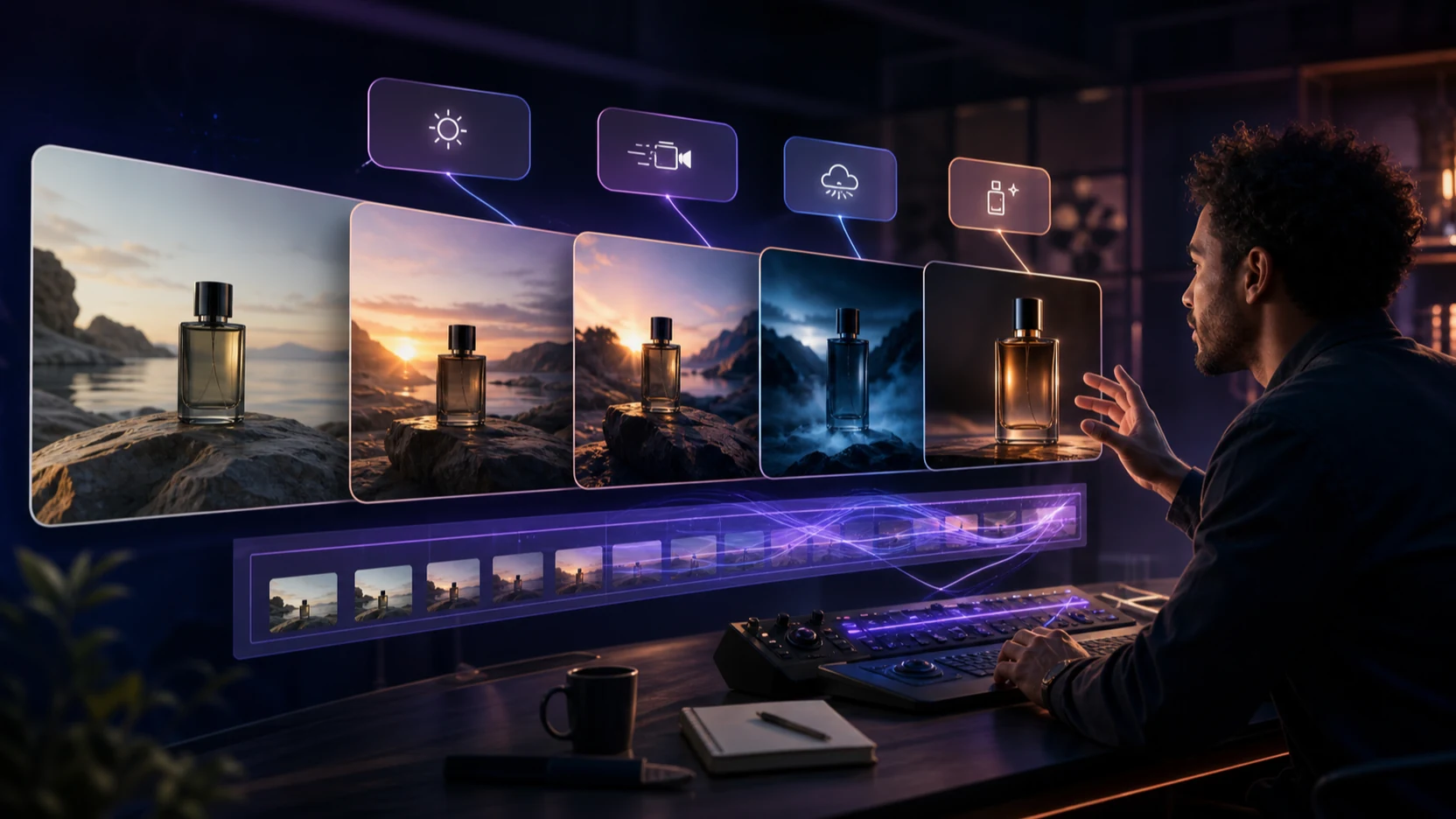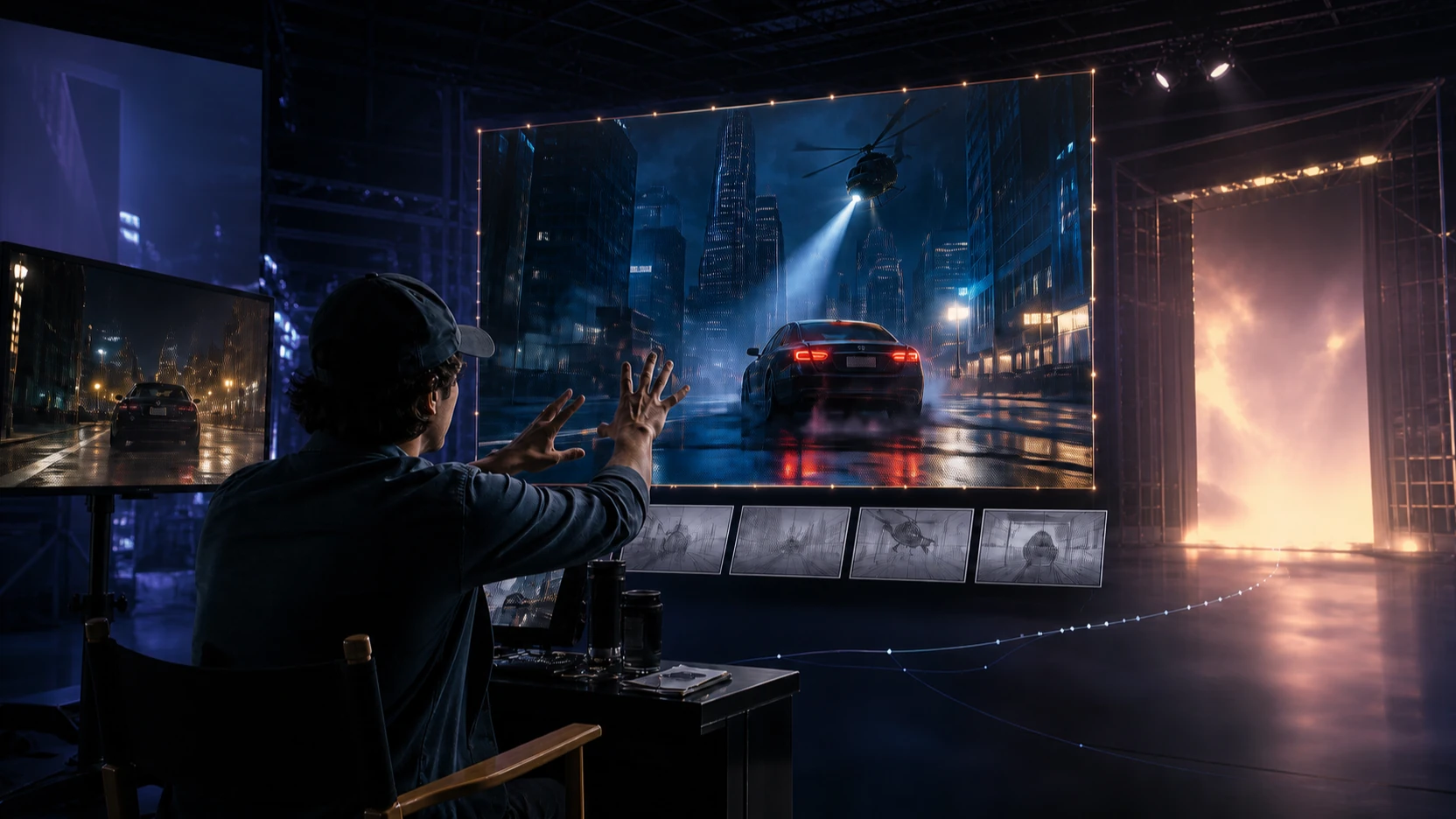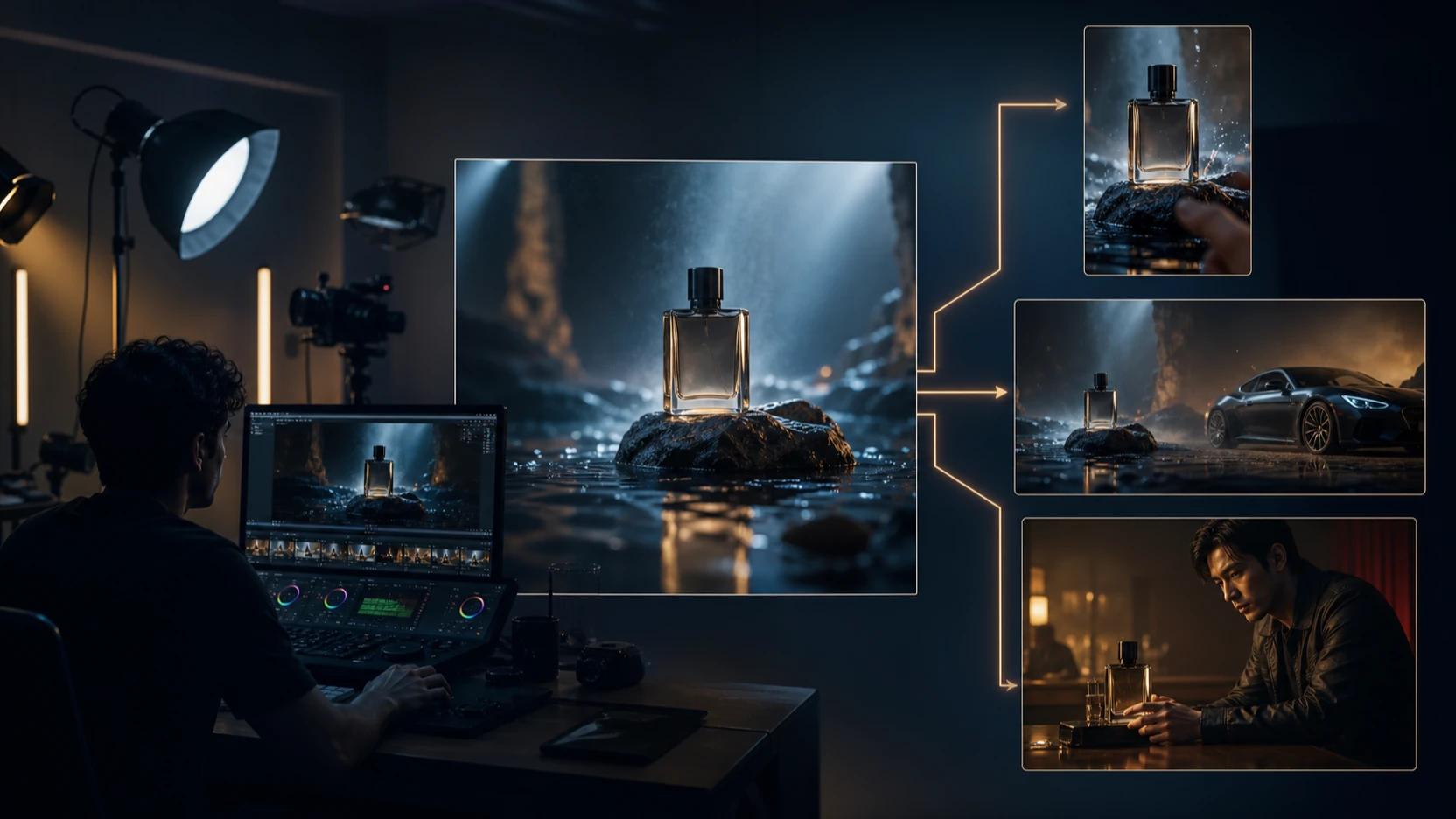
Short-form video has entered a new phase. It’s no longer enough to animate an image—you now need motion that feels intentional and sound that sells the moment. This is exactly where PixVerse 5.5 positions itself: fast, social-ready image to video with sound, without overwhelming creators with technical complexity.
In this guide, we’ll break down how PixVerse 5.5 image to video actually works in practice, why its sound-enabled workflow matters, and how creators can consistently get better results using the real interface—not theory.
If you’re a creator, marketer, or designer looking for an accessible AI video generator that turns still images into engaging clips with audio, this article will walk you through everything you need to know.
What Is PixVerse 5.5?
PixVerse 5.5 is an AI video generation model focused on speed, simplicity, and social-native output. Unlike cinematic-first tools that aim for long, film-style sequences, PixVerse is designed for:
- Short clips (3–5 seconds)
- Image-based animation
- Light camera motion and subject movement
- Optional sound for atmosphere and impact
As a PixVerse 5.5 AI video generator, its strength lies in how quickly you can go from a single image to a shareable video—with motion and audio included.
Why Image to Video With Sound Matters Now
Silent animation can look impressive, but sound dramatically increases perceived quality. Even subtle ambience—wind, rain, a soft whoosh—makes an AI-generated clip feel intentional rather than mechanical.
With PixVerse 5.5 image to video with sound, creators can:
- Add atmosphere without external editing
- Increase engagement on Shorts, Reels, and TikTok
- Make static visuals feel alive in under a minute
This is especially valuable for creators who don’t want to jump between multiple tools just to add basic audio.
Core Features of the PixVerse 5.5 AI Video Generator
Image-First Animation
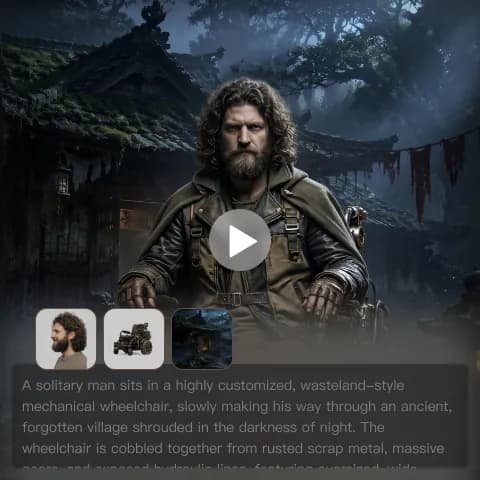
PixVerse 5.5 starts with a single Start Frame image, which defines:
- Subject identity
- Composition
- Lighting style
- Visual tone
This approach ensures visual consistency throughout the clip, making it ideal for portraits, product shots, illustrations, and stylized artwork.
Short-Form Motion That Feels Social-Native
Rather than cinematic camera sweeps, PixVerse focuses on:
- Slow push-ins
- Gentle pans
- Parallax depth
- Subtle environmental movement
These motion types align perfectly with how short-form video is consumed today.
Built-In Sound Awareness
While PixVerse doesn’t expose complex audio controls, it responds well to natural language sound cues in prompts. This allows creators to generate PixVerse 5.5 sound video outputs that feel cohesive rather than silent or disconnected.
Step-by-Step: PixVerse 5.5 Image to Video With Sound Workflow
This workflow matches the real PixVerse interface and reflects how creators actually get good results.
Step 1: Upload a Strong Start Frame
Your image is everything.
Choose a Start Frame that:
- Is sharp and well-lit
- Has a clear main subject
- Avoids extreme motion blur
- Separates subject from background
Good examples include:
- Portrait photos
- Product images
- AI-generated illustrations
- Cinematic stills
PixVerse infers motion and depth from this image, so clarity matters more than complexity.
Step 2: Write a Motion-Focused Prompt
PixVerse prompts should describe movement, not just content.
Instead of:
“A woman standing in the rain.”
Try:
“Slow camera push-in, rain falling gently, hair subtly moving in the wind.”
Effective prompts often include:
- Camera motion (pan, push-in, parallax)
- Subject motion (breathing, fabric movement)
- Environmental cues (rain, light flicker, drifting fog)
Less is more. One clear motion idea works better than many competing actions.
Step 3: Add Sound Direction Naturally
For PixVerse 5.5 image to video with sound, audio intent should be embedded directly in the prompt.
Examples:
- “Soft rain ambience in the background”
- “Low cinematic hum”
- “Gentle wind sound”
- “Subtle whoosh as the camera moves”
Avoid technical audio language. PixVerse responds best to descriptive, human phrasing.
Step 4: Set Resolution, Duration, and Ratio
PixVerse 5.5 keeps settings simple—but they matter.
Recommended defaults:
- Resolution: 720p
- Duration: 5 seconds
- Ratio:
- 16:9 for YouTube and previews
- 9:16 for TikTok, Reels, Shorts
Shorter clips tend to look cleaner and sync sound more naturally.
Step 5: Generate and Review Motion + Sound Together
Once generated, evaluate the clip holistically.
Ask:
- Does the motion feel natural?
- Is the sound too strong or too subtle?
- Does the audio match the visual mood?
Avoid fixing everything at once. Identify one issue, adjust the prompt slightly, and regenerate.
Step 6: Iterate for Social-Ready Results
Most strong PixVerse results come from 2–3 small iterations, not one perfect prompt.
Common refinements:
- Reduce motion intensity if faces warp
- Switch from full movement to parallax
- Clarify sound source (background vs foreground)
This iterative loop is where PixVerse 5.5 shines—fast feedback, fast improvement.
Prompt Templates for PixVerse 5.5 Sound Video
Use this simple structure:
Subject + Motion + Environment + Sound + Style
Example 1: Portrait
“Slow camera push-in, soft wind moving hair, cinematic lighting, quiet ambient hum.”
Example 2: Product
“Subtle rotation, clean studio light, gentle whoosh sound, modern commercial style.”
Example 3: Landscape
“Parallax depth movement, drifting fog, distant wind ambience, cinematic atmosphere.”
Common Problems and How to Fix Them
Flicker or warping
- Reduce motion complexity
- Avoid extreme camera angles
Face distortion
- Use a stronger base image
- Prefer subtle motion
Background wobble
- Use parallax instead of full scene movement
Audio mismatch
- Specify mood and sound source more clearly
PixVerse 5.5 vs Other Image-to-Video Tools
PixVerse 5.5 stands out for:
- Speed
- Ease of use
- Social-ready output
- Integrated sound cues
It’s less suited for:
- Long narrative video
- Heavy cinematic control
- Frame-by-frame editing
For creators focused on short-form engagement, PixVerse 5.5 image to video with sound hits a sweet spot between quality and simplicity.
Final Verdict: Is PixVerse 5.5 Worth Using?
If your goal is to:
- Animate images quickly
- Add light motion and sound
- Produce content for Shorts, Reels, or TikTok
- Avoid complex video pipelines
Then PixVerse 5.5 is absolutely worth using.
As an AI video generator, it doesn’t try to be everything. Instead, it focuses on what creators actually need right now: fast, engaging image-to-video with sound that feels native to modern platforms.