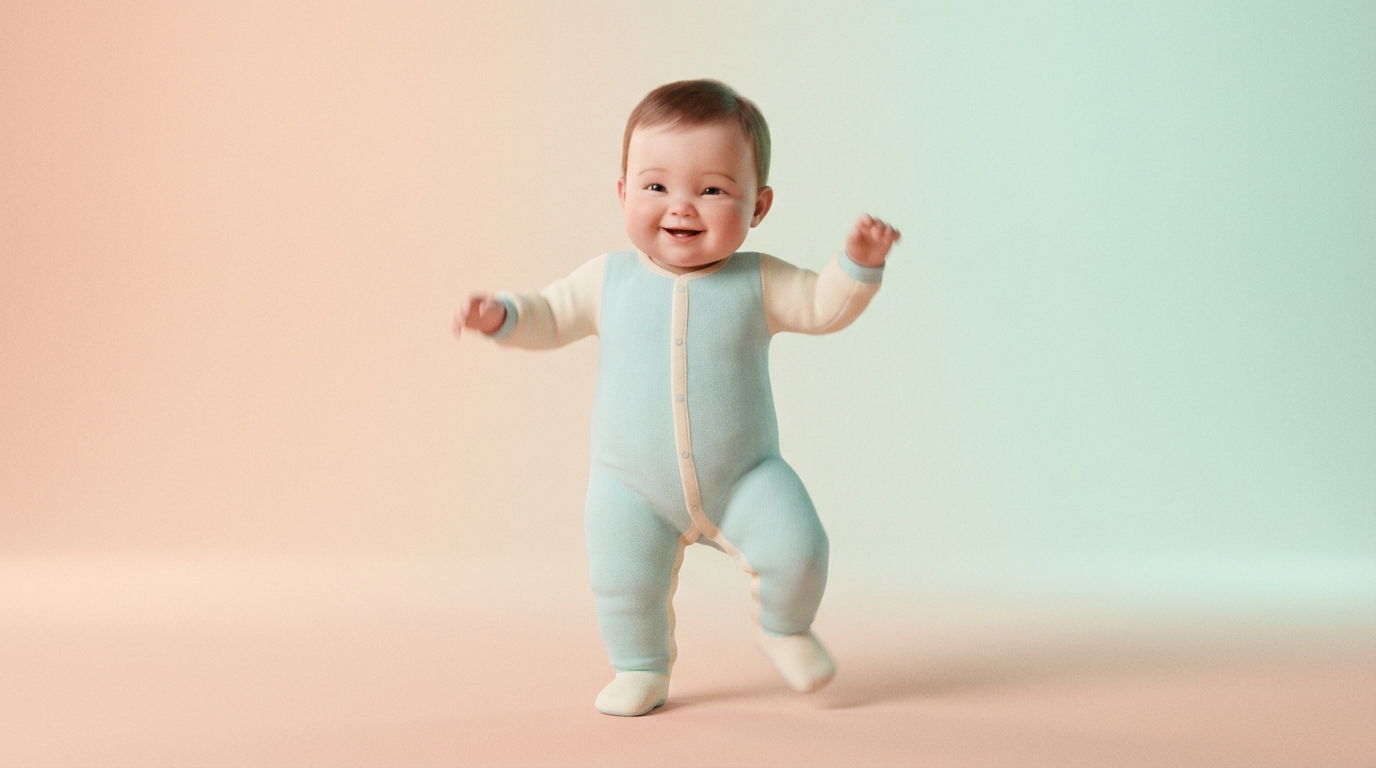
Baby dance clips are everywhere—and when they work, they really work. They’re cute, loopable, easy to watch, and perfect for short‑form platforms. But if you’ve ever tried to make one yourself, you’ve probably seen the darker side of the trend: warped faces, jittery hands, or movement that feels more creepy than charming.
The good news is that this is exactly the kind of problem Kling 2.6 Motion Control is good at solving. With the right setup, you can create a clean, bouncy baby dance clip that looks intentional instead of accidental.
In this guide, we’ll walk through a creator‑friendly way to make baby dance videos using Kling—what to upload, how to prompt, how to avoid common pitfalls, and why VideoWebAI is one of the easiest places to run Kling 2.6.
If you want to jump straight to the tool, here’s the model page we’ll be using throughout the article:
Or if you just want to create AI Baby dance, simply jump to our AI Baby Dancing Creator, simple and intuitive! What's better is you can choose you prompt or not, although it'd be more precise with some prompt.
Why baby dance videos blow up (and why most attempts fail)
Baby dance clips hit a sweet spot: simple rhythm, expressive movement, and instant emotional payoff. Viewers don’t expect perfection—they expect cuteness and clarity.
Where most attempts go wrong is motion overload. Too much movement, too many style instructions, or an unclear source image can quickly turn a charming idea into something uncanny.
That’s why tools like Kling baby dance AI are popular: they focus on transferring motion cleanly instead of inventing chaos.
What you’ll make in about 10 minutes
Using Kling, you can create a short, shareable baby dance clip with just one image and a simple prompt. Most creators aim for:
- Duration: 5 seconds
- Ratio: 9:16 for TikTok/Reels or 16:9 for YouTube
- Motion: gentle, rhythmic, loop‑friendly
This workflow works whether you’re experimenting or posting seriously, and it’s a great introduction to AI baby dance with Kling.
Why Kling 2.6 works so well for baby dance
Kling’s motion control doesn’t try to reinvent movement. Instead, it takes the structure of a dance and applies it consistently to your subject.
That’s why kling 2.6 motion control baby dance clips tend to look smoother than outputs from more general image‑to‑video tools, especially when you keep the duration short.
Short loops also reduce visual drift, which is critical when the subject is a baby.
A simple workflow that actually works (VideoWebAI recommended)
If you’re running Kling 2.6 for the first time, VideoWebAI makes the process straightforward. You don’t need to dig through advanced settings to get a decent result.
Here’s the basic flow:
- Upload your baby image (JPG, PNG, or WEBP)
- Set duration to 5 seconds
- Choose your ratio (9:16 or 16:9)
- Write a short, focused prompt
- Generate, review, and iterate
This setup is ideal for testing Kling motion control for baby dance ideas quickly.
Choose the right baby image (this matters more than the prompt)
Before you worry about words, make sure your source image is solid. The best results come from images where:
- The face is clear and unobstructed
- The upper body and arms are visible
- The baby is facing the camera or at a slight angle
- The background is simple
Avoid images with heavy props, extreme angles, or tiny subjects in frame. These issues are hard to fix later, no matter how good your prompt is.
This preparation step is the foundation of How to use Kling motion control for baby dance effectively.
Photo‑to‑video vs image‑to‑video: which should you use?
Photo to video (fast and simple)
If you’re starting from a single baby photo and want quick results, photo‑to‑video is often enough. It’s great for casual clips and fast experiments.
This approach is commonly described as Photo-to-video baby dance with Kling.
Image to video (more control)
If you want a stylized look or more predictable motion, image‑to‑video gives you slightly more control over the final result.
This is the better choice for creators who care about consistency or want to reuse the same baby character across multiple clips, which is why people search for Image-to-video baby dance with Kling.
Step by step: how to make an AI baby dance with Kling
Here’s a beginner‑friendly version of the process:
- Upload your baby image
- Select a short duration (5 seconds)
- Choose your video ratio
- Add a short prompt (examples below)
- Generate and review the output
- Make small adjustments and rerun if needed
This is the simplest explanation of How to make an AI baby dance with Kling without overcomplicating things.
Prompting that keeps the result cute (not creepy)
When it comes to baby dance clips, less is more. You’re not choreographing a performance—you’re guiding a mood.
A reliable formula looks like this:
cute baby, gentle rhythmic dance, smooth movement, stable face, soft lighting, clean background, loopable motion
This kind of wording is exactly what people mean when they talk about a Kling 2.6 motion control baby dance prompt that actually works.
Copy‑paste prompts you can use immediately
Realistic cute baby dance (safe default)
A cute baby doing a gentle, rhythmic dance, smooth body movement, stable facial features, natural proportions, soft lighting, clean studio background, loopable animation.
Anime baby dance style
If you prefer a stylized look, try an anime‑inspired version:
Anime‑style baby character performing a simple, cute dance, smooth motion, consistent face, soft pastel colors, clean background, loopable movement.
This style is often searched as Anime baby dance with Kling.
Plush or mascot baby dance
Chibi‑style baby mascot dancing gently, rounded shapes, stable proportions, bright lighting, simple background, smooth looping motion.
A quick tutorial mindset: iterate like a creator
Instead of betting everything on one generation, use a simple three‑run approach:
- First run: test motion and rhythm
- Second run: improve face stability
- Third run: polish background and style
This approach is what most people mean by a Kling motion control baby dance tutorial in practice.
Fix the most common problems fast
- Face morphing: simplify the prompt and reduce motion intensity
- Jittery hands or feet: shorten the duration and avoid complex dance cues
- Unnatural proportions: start with a clearer source image
- Background warping: specify a clean or studio background
Small changes usually go further than dramatic prompt rewrites.
Export tips for TikTok, Reels, and Shorts
- Use 9:16 for TikTok and Reels
- Keep clips at 5 seconds for looping
- Add music or captions after export if you’re not using built‑in audio
Short, clean loops perform better than long, complex animations.
Why VideoWebAI is a good place to run Kling 2.6
While Kling can be accessed in different ways, VideoWebAI offers a clean interface and fast iteration, which matters when you’re testing prompts and images.
If your goal is to create and refine baby dance clips without friction, starting on VideoWebAI makes the learning curve much gentler.
You can try it directly here:
Final takeaway
If you want cute, shareable baby dance clips that don’t fall into the uncanny valley, Kling 2.6 Motion Control is a solid choice—especially when you keep your prompts simple and your clips short.
Also, we offer a more intuitive and simple solution, AI Baby Dancer with trained model for easy and precise control.
Start with a clean image, use gentle motion cues, and iterate patiently. With the right setup, you’ll spend more time posting and less time fixing weird artifacts.