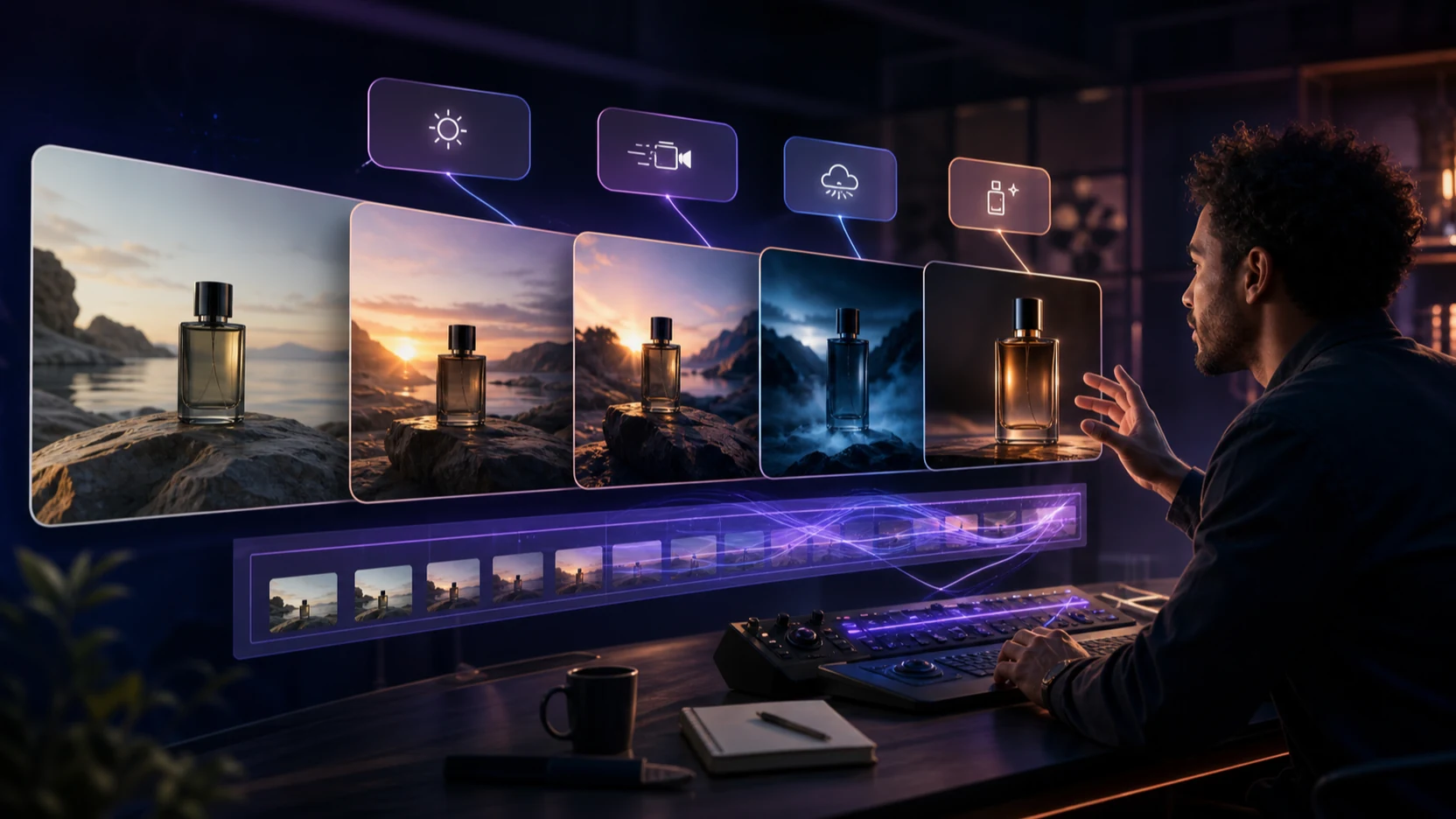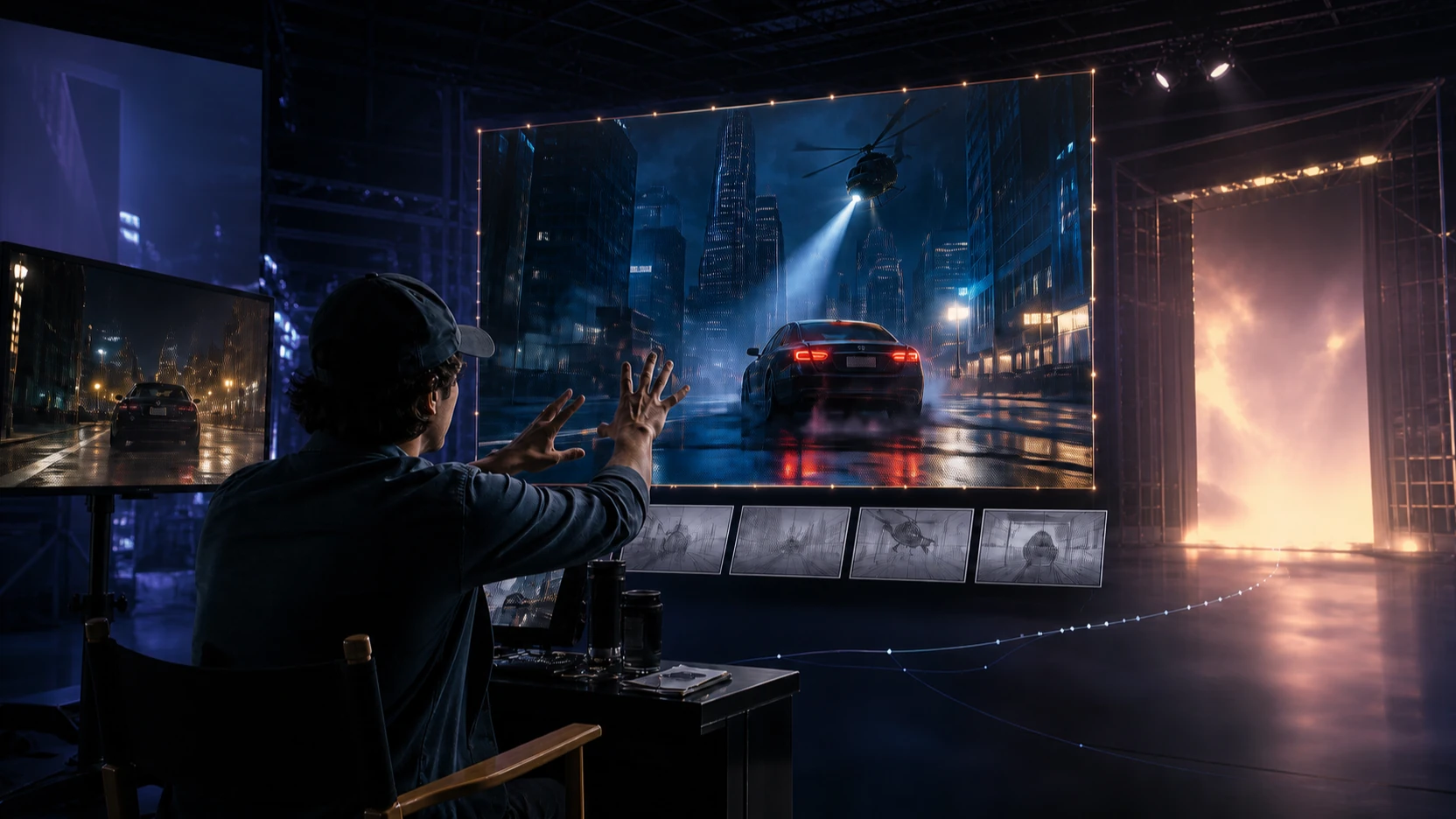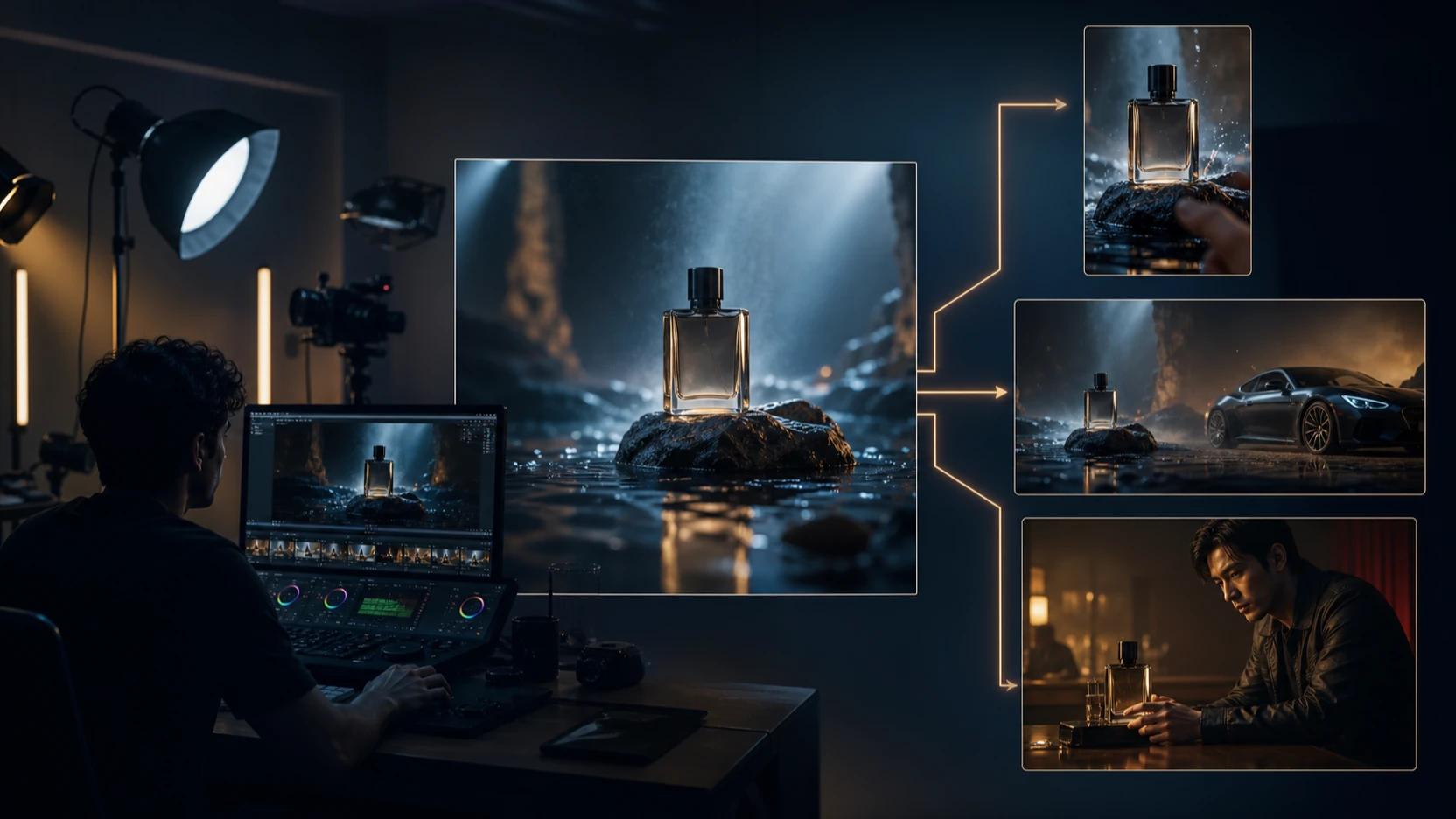
AI video generation is rapidly reshaping how visual stories are created—and PixVerse is one of the engines driving that evolution. With the release of PixVerse 5.5, creators now have access to smoother animation, sharper visuals, and more expressive scene generation than ever before. Whether you're a filmmaker testing ideas, a marketer generating product videos, or a content creator crafting short-form clips, version 5.5 introduces features that make high-quality video production easier and faster.
This guide walks you through everything you need to know about PixVerse 5.5: new features, editing workflows, prompt structures, real-world use cases, and ready-to-use prompts.
1. What Is PixVerse 5.5—and Why Does It Matter?
PixVerse has consistently been one of the most accessible and powerful AI video generators, allowing anyone—even beginners—to create dynamic footage from text or still images. Version 5.5 represents a major leap in motion clarity, character consistency, and overall video expressiveness.
With 5.5, video creation feels less like “AI guessing your prompt” and more like directing an intelligent animation engine.
What you get in this guide:
- Full explanation of PixVerse 5.5’s new abilities
- How to use it for the best results
- Professional prompt templates
- Practical use cases for creators, brands, and studios
2. What’s New in PixVerse 5.5?
PixVerse 5.5 improves on previous versions in several key areas:
✔ Better Motion Stability
Movements are smoother and more consistent, reducing jitter and unnatural transitions.
✔ Higher-Quality Frames
Sharper textures, more detailed environments, and better lighting interpretation.
✔ Stronger Prompt Understanding
The system reads descriptive prompts more literally, giving users more control over style, tempo, and emotion.
✔ Better Character Retention
Faces and identities remain more stable across frames—crucial for storytelling.
✔ Faster Processing Times
Video generation is more efficient, especially for short clips.
Together, these upgrades make PixVerse 5.5 one of the most balanced AI video tools available right now.
3. Core Features of PixVerse 5.5
3.1 Text-to-Video Generation
PixVerse converts written prompts into moving scenes. It works well for:
- Cinematic storytelling
- Action sequences
- Animations
- Aesthetic lifestyle clips
- TikTok/Reels content
- Fantasy and sci-fi scenes
Good Prompt Example:
"A silver-haired warrior runs through a neon-lit cyberpunk alley, rain falling, dramatic camera pan, cinematic lighting, slow motion."
Bad Prompt Example:
"cool video of guy running." → Too vague, low detail = weak output.
PixVerse thrives on descriptive input.
3.2 Image-to-Video Animation
Image-to-video lets you take a single photo and animate:
- Expressions
- Camera movements
- Environmental motion (fire, water, wind)
- Scene transitions
- Character motion (walking, turning, blinking)
This feature is popular for:
- Portrait animation
- Product reveal videos
- Character intros
- Social media loops
3.3 Improved Character Consistency
One of the biggest criticisms of earlier video models—face swapping and instability—has been dramatically improved.
PixVerse 5.5 now maintains:
- Character identity
- Hairstyle
- Clothing
- Facial structure
- Motion continuity
This makes it far more reliable for storytelling and recurring characters.
3.4 Camera Motion & Scene Control
Version 5.5 introduces better control over cinematic motion:
- Dolly in/out
- Tracking shots
- Panning
- Tilting
- Rotations
- Slow-motion or fast-paced scenes
Camera control is essential for giving your videos a professional look.
4. How to Use PixVerse 5.5 (Step-by-Step Tutorial)
4.1 Text-to-Video Workflow
- Start a new project
- Enter a detailed prompt
- Choose style: realistic, anime, cinematic, fantasy, etc.
- Select aspect ratio (16:9, 9:16, 1:1…)
- Choose motion mode
- Generate
- Refine further with iteration
Pro Tip: Use short clips (2–4 seconds) for the cleanest motion.
4.2 Image-to-Video Workflow
- Upload your photo
- Add a motion-focused prompt describing action, emotion, or environment
- Select a motion type (gentle, dynamic, cinematic)
- Choose your aspect ratio
- Generate
- Adjust until the motion feels natural
Example Prompt:
"Soft cinematic zoom, warm glowing light, the character smiles gently as snow falls in the background."
4.3 Exporting & Post-Editing
PixVerse 5.5 allows exports suitable for:
- YouTube
- TikTok
- Commercial presentations
Use post-edit tools like CapCut, Premiere Pro, or DaVinci Resolve for:
- Color grading
- Speed adjustments
- Sound design
- Motion stabilization (rarely needed now)
5. Best Prompt Structures for PixVerse 5.5
High-quality AI video comes from high-quality prompts. Here are formulas that always yield strong results.
5.1 Text-to-Video Prompt Templates
Cinematic Movie Shot
"A lone traveler walks through a desert at sunset, long shadows, orange glow, dramatic wide-angle camera, dust swirling, emotional atmosphere."
Anime Scene
"Anime girl with silver hair standing on a cliff during a storm, dynamic winds, glowing magic symbols, cinematic camera rotation, high-detail anime style."
TikTok/Aesthetic Prompt
"Cozy aesthetic girl in a warm-lit bedroom, soft slow zoom, fairy lights in the background, pastel colors, peaceful vibe."
Product Video Prompt
"A glossy perfume bottle rotates slowly on a mirror surface, soft spotlight, fog atmosphere, sparkling particle effects, luxury ad style."
5.2 Ready-to-Use Example Prompts
Action Scene
"Knight in black armor sprinting through a burning castle, embers flying, dramatic slow-motion, cinematic camera tracking."
Lifestyle / Cozy Aesthetic
"Woman sitting by a window with falling snow outside, warm tea steam rising, gentle camera push-in, nostalgic winter mood."
Futuristic / Sci-Fi
"Floating drones navigate a neon cyber city, rain reflections, intense blue and purple lighting, dynamic chase motion."
Fantasy Creature Animation
"Golden dragon soaring above clouds, sunlight shimmering on scales, sweeping camera arc, epic orchestral mood."
6. Real-World Use Cases
PixVerse isn’t just a creative toy—it’s now a serious tool used by professionals.
6.1 Content Creators
- TikTok trending clips
- Aesthetic loops
- Vlogs with AI enhancements
- AI storytelling
6.2 Marketing & Advertising
- Product animations
- Short video ads
- Landing page visuals
- Brand storytelling
6.3 Filmmakers & Animators
- Concept scenes
- Storyboarding
- Style tests
- Animated intros
6.4 Businesses
- Corporate explainers
- Training visuals
- Internal communications
PixVerse dramatically reduces the cost and time needed for video production.
7. Strengths and Limitations of PixVerse 5.5
Strengths
- Higher-quality frames
- Stable motion and characters
- Fast rendering
- Great for cinematic and stylized content
- Easy to use
Limitations
- Character consistency still limited for long clips
- Some artifacting in hyper-complex scenes
- Requires prompt literacy for best results
- Not a full replacement for professional VFX tools
PixVerse 5.5 is best viewed as a creative accelerator, not a perfect filmmaking engine.
8. PixVerse 5.5 vs Competitors
Compared to other AI video models:
Runway Gen-2
- More realistic, but sometimes less expressive
- PixVerse offers better stylization
Pika Labs
- Great for dynamic motion
- PixVerse provides more stable characters
Kling
- Superb physical accuracy
- PixVerse more beginner-friendly
Veo
- Strong story control
- PixVerse faster and more accessible to casual creators
Overall, PixVerse 5.5 occupies a sweet spot between quality, speed, and usability.
9. Pro Tips for Getting the Best Results
- Use shorter clips for higher motion clarity
- Add emotional words (calm, tense, dramatic…)
- Add camera instructions (pan, zoom, dolly…)
- Use stylized prompts for best results
- Keep character descriptions consistent
- Avoid overly chaotic scenes
Example Perfect Prompt:
"Young woman in a red cloak walking through a snowy forest, soft ambient light, gentle camera tracking, magical winter atmosphere, ultra-detailed foliage."
10. Conclusion — Is PixVerse 5.5 Worth It?
PixVerse 5.5 is one of the most capable and approachable AI video generators available today. With smoother motion, better character retention, and faster rendering, it's an ideal tool for:
- TikTok creators
- YouTubers
- Marketers
- Animators
- Filmmakers
- Designers
- Businesses
Whether you’re producing aesthetic clips, concept scenes, ads, or animated storytelling, PixVerse 5.5 offers the perfect blend of creative freedom and technical stability.
If you’re ready to explore AI-powered motion like never before, PixVerse 5.5 is absolutely worth trying.