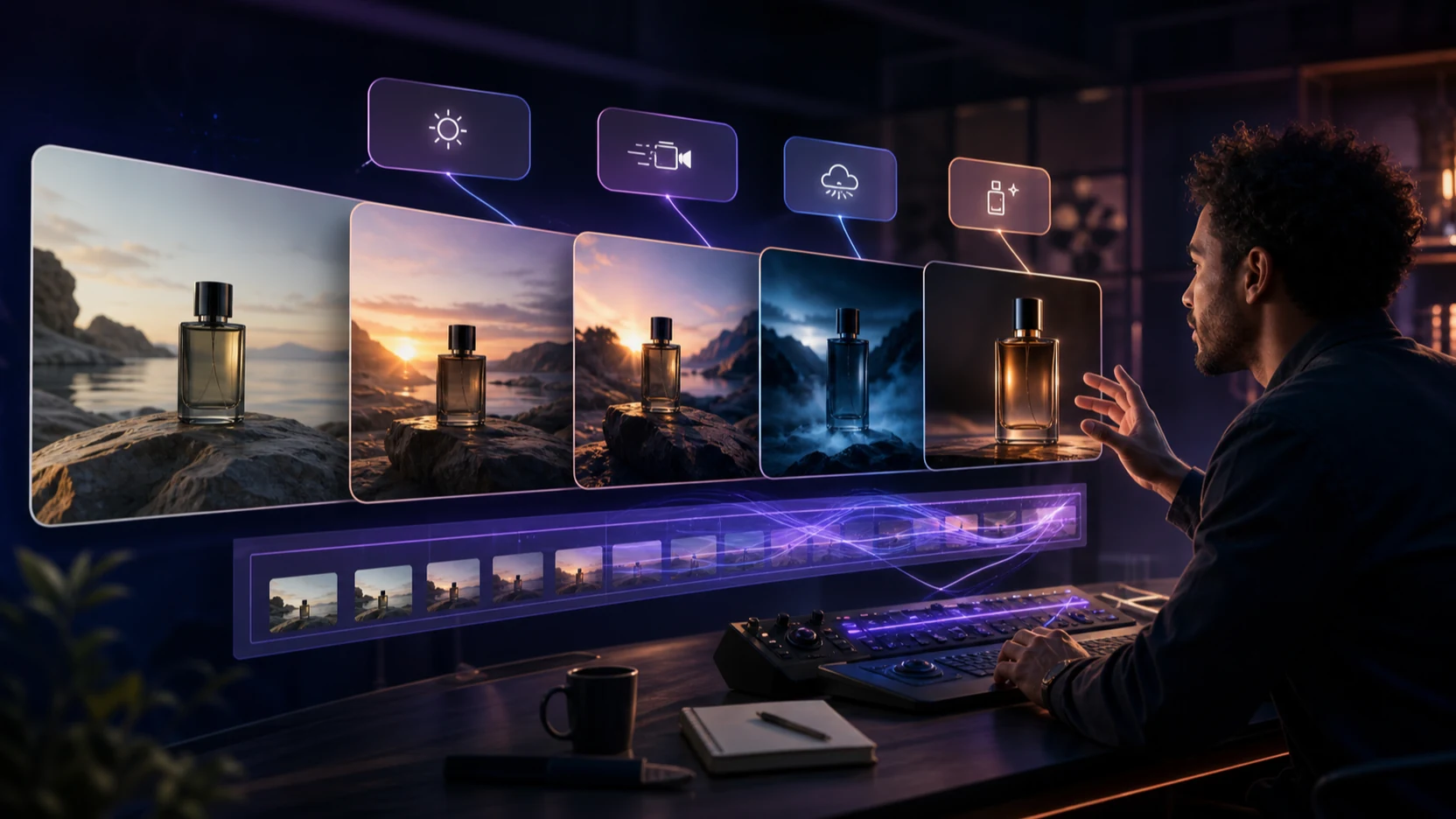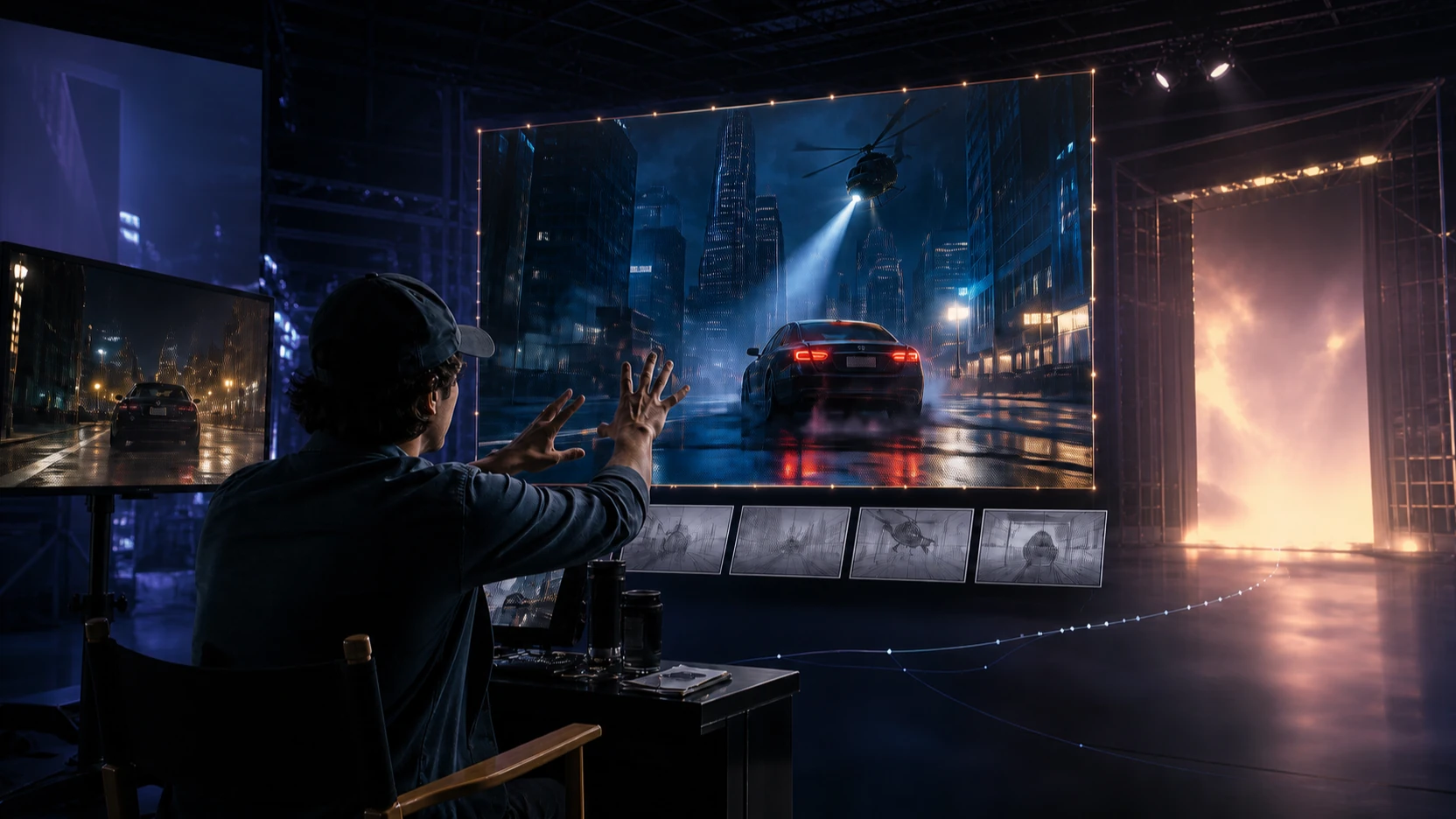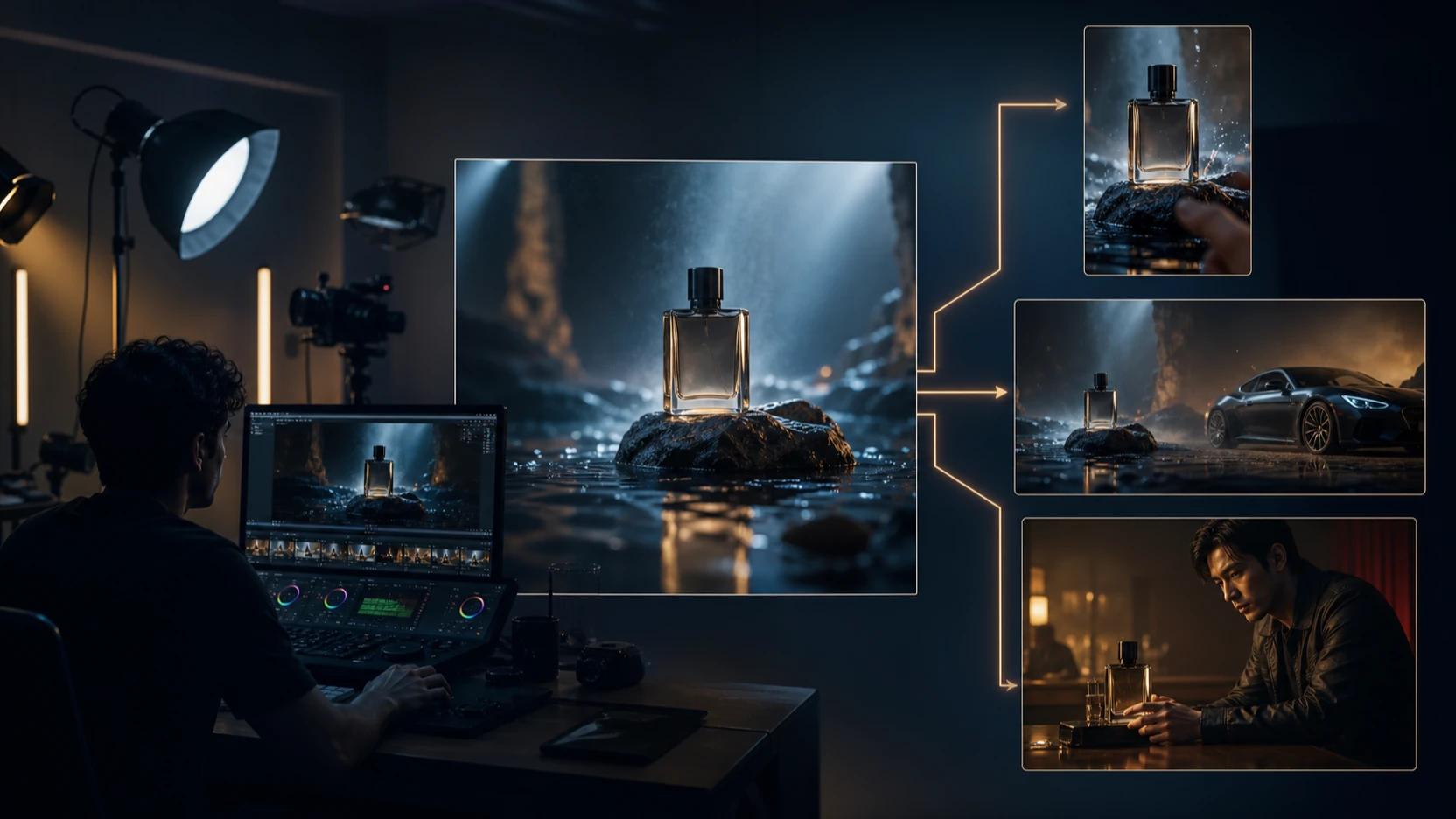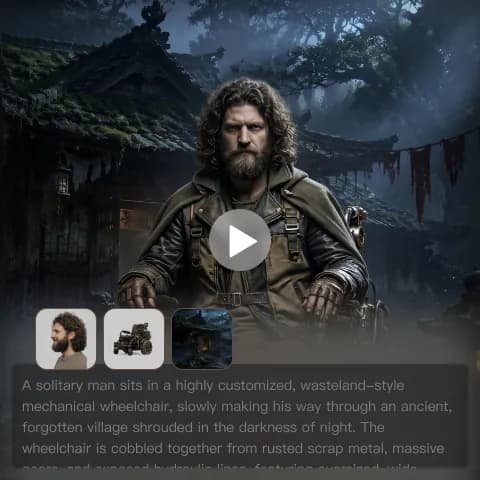
If you’ve been following AI video lately, you’ve probably felt the same tension everyone else is feeling: the visuals keep improving, but consistency and control are still the real bottlenecks. You can generate a beautiful five‑second clip… and then struggle to reproduce that look, keep the same character, or stitch multiple shots into something that feels like an actual scene.
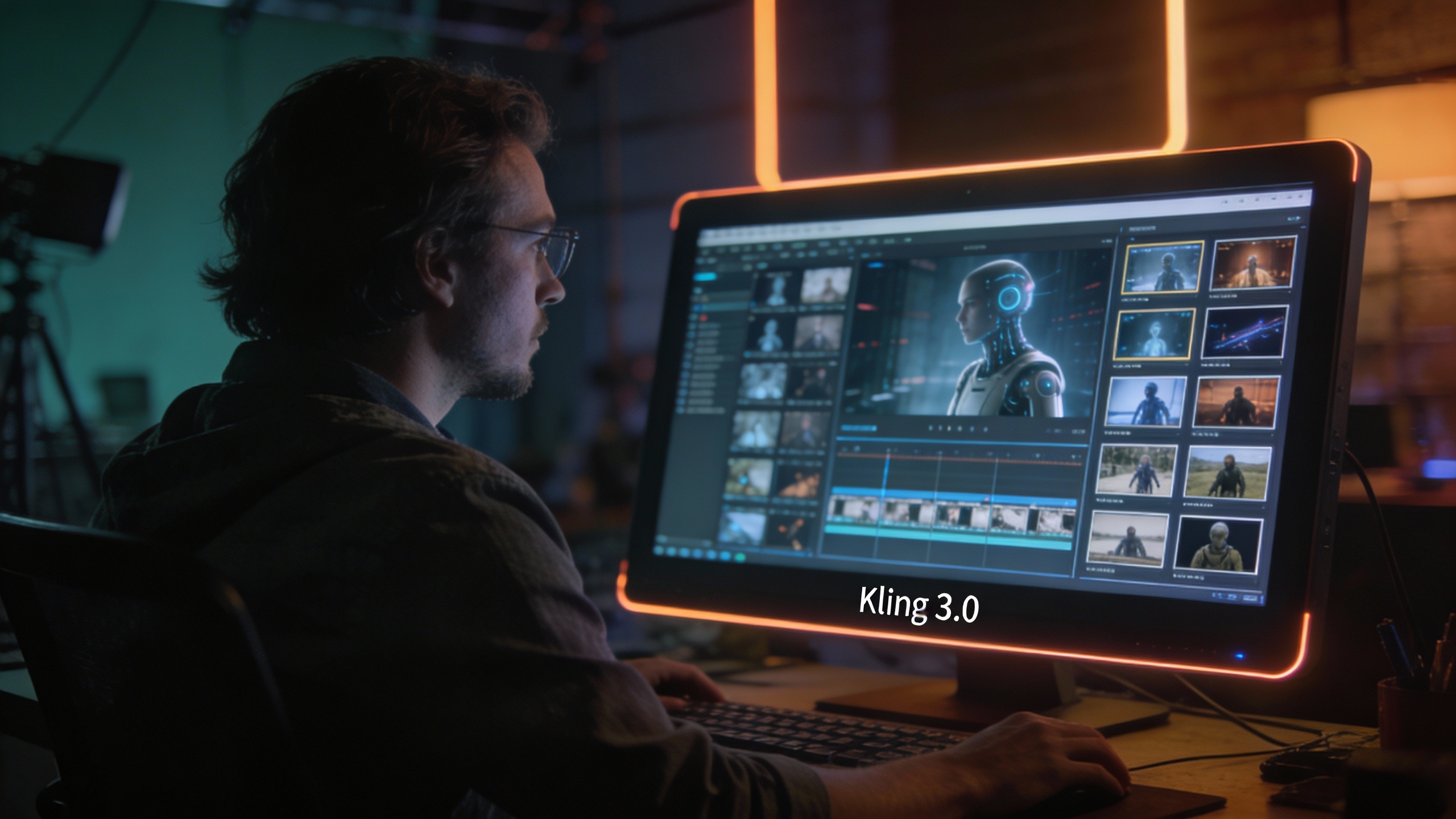
That’s why Kling 3.0 is getting so much attention. It’s being positioned as the next major step in Kling’s video line—aiming to make the workflow feel more “director-friendly,” not just “wow, pretty.”
In this article, I’ll break down the latest, responsible info about the Kling 3.0 AI video generator, what people mean when they say Kling 3.0 model coming soon, how Kling 3.0 text to video and Kling 3.0 image to video typically fit into real creator workflows, and how to prepare to use it smoothly on VideoWeb AI.
And if you need a reliable model you can use right now, I’ll also recommend the proven option: Kling 2.6 AI video generator.
1) Kling 3.0 status: “coming soon” doesn’t mean “nobody can use it”
When creators say Kling 3.0 model coming soon, they’re usually reacting to a familiar rollout pattern:
- The model is announced publicly.
- It starts in exclusive/selected early access.
- Integrations appear gradually across platforms.
- Wider availability comes later.
So if you’re looking for a simple answer: Kling AI 3.0 video generator exists as a new generation, but access may be limited depending on where you’re trying to use it.
That’s also why it’s smart to plan your workflow so you can:
- produce consistently today (with a stable model), and
- upgrade instantly once Kling 3.0 is available in your preferred tool.
This is where using a model hub like VideoWeb AI becomes genuinely useful: you can keep your prompts and workflow consistent, then switch models when the new one lands—without rebuilding everything from scratch.
2) What is Kling 3.0 (in plain English)?
Kling 3.0 AI video generation is basically the “next major Kling video model era.” People talk about it as a more unified experience—less jumping between separate tools or separate model lines, and more “one workflow that can do the job.”
You’ll see these phrases a lot:
- Kling 3.0 video model
- Kling 3.0 AI video generator
- Kling 3.0 new features
For everyday creators, what matters isn’t the marketing label—it’s what you can do with it:
- Kling 3.0 text to video: you describe a scene, and it generates a video clip.
- Kling 3.0 image to video: you upload an image and animate it into a video.
If Kling 2.x felt like “generate a strong clip,” Kling 3.0 is aiming to feel more like “generate a strong clip and keep creative continuity.”
3) What’s new in Kling 3.0: a creator-first way to think about features
Instead of listing features like a product page, let’s translate “new features” into what creators actually want:
A) Better consistency (the feature you feel, not the feature you click)
The biggest pain point in AI video is still identity drift:
- faces subtly changing n- outfits changing between frames
- objects warping
- the vibe shifting mid-clip
When people talk about Kling 3.0 new features, they’re often really talking about improvements in temporal stability and subject consistency.
B) A more “single workflow” creation loop
Many creators want one flow that can cover:
- concept → shot generation
- shot iteration
- multi-shot planning
- reference-based continuity
Even if you only generate short clips, this matters, because your time is usually wasted in the rework phase.
C) Higher-fidelity export goals (including 1080p expectations)
You’ll see the keyword phrase Kling 3.0 1080p AI video a lot. In practice, creators usually mean:
- the output looks clean enough for 1080p delivery, and
- the motion doesn’t fall apart when you upscale or edit
Whether 1080p is “native” or “export-ready” can vary by platform and settings, but the goal is the same: deliver something that doesn’t look soft, noisy, or unstable once published.
D) A more cinematic baseline
Finally, there’s the vibe angle: Kling 3.0 cinematic video.
In many models, cinematic quality isn’t just resolution—it’s:
- camera behavior (intentional moves, not random zoom)
- lighting consistency
- motion with believable weight
- film-like composition
Even if you never want a “movie” look, a cinematic baseline helps everything else (ads, product reels, creators, storytelling).
4) Kling 3.0 vs Kling 2.6: what you should do today
Here’s the honest, practical way to approach it.
Use Kling 2.6 when you need reliable production right now
If you’re shipping content weekly (or daily), Kling 2.6 AI video generator is the practical choice:
- it’s a known model with mature workflows
- it’s easier to troubleshoot
- you can build reusable prompt templates today
If you want to start immediately on VideoWeb AI, use: Kling 2.6 AI video generator.
Use Kling 3.0 when it appears in your model list (and test it like a pro)
When Kling 3.0 video model becomes available on your platform, don’t switch your entire pipeline on day one.
Instead, run a controlled test pack:
- 1 character shot
- 1 product shot
- 1 environment shot
- 1 fast motion shot
Compare:
- consistency
- motion realism
- prompt-following
- artifact rate
That’s how you know whether Kling 3.0 is ready for your everyday workflow.
5) How to use Kling on VideoWeb AI (workflow that upgrades cleanly to 3.0)
Video generation is only as good as your process. If you set up a clean workflow now, moving from Kling 2.6 to Kling AI 3.0 video generator later becomes painless.
Step 1: Decide your input type
Pick one:
- Text-to-video if you want maximum creative freedom.
- Image-to-video if you want stronger control over identity, composition, or brand visuals.
Step 2: Use a “prompt spine” that stays consistent across models
Here’s a prompt structure that works well for Kling‑style models:
- Subject: who/what is the focus?
- Action: what are they doing?
- Setting: where is it happening?
- Camera: shot type + movement
- Lighting: mood + source
- Style: cinematic, documentary, commercial, anime, etc.
- Constraints: “no face morphing, stable identity, no text artifacts”
When Kling 3.0 lands, you reuse the same prompt spine and simply adjust the last 10–20% based on how the model responds.
Step 3: Keep a repeatable “shot pack”
To make your workflow stable, build your own set of reusable shot prompts:
- “close-up dialogue”
- “walking profile shot”
- “product hero shot”
- “wide environment reveal”
This is the fastest way to scale output quality—because you’re not inventing a new prompting approach every time.
6) Kling 3.0 text to video: prompt examples that actually feel cinematic
You don’t need fancy words—you need clear direction.
Cinematic character shot
Prompt template:
A young adventurer in a weathered cloak stands under warm lantern light in a rainy alley. Slow breath visible in cold air. Medium close-up. Camera slowly pushes in. Soft rim light, cinematic lighting, realistic motion, subtle film grain feel. Stable face, stable outfit, no morphing, no extra limbs.
Why it works:
- the camera move is singular and slow
- lighting is consistent
- motion is subtle (less risk of distortion)
Cinematic environment reveal
A foggy mountain temple at dawn. Wide establishing shot. Camera gently cranes upward, revealing the temple roofline and drifting mist. Natural lighting, calm atmosphere, cinematic composition, realistic movement. No warped architecture, no melting details.
7) Kling 3.0 image to video: how to get the best motion without breaking the image
Kling 3.0 image to video (and image-to-video workflows in general) usually succeeds or fails based on the source image.
Pick the right source image
Use images that have:
- a clear subject
- clean silhouettes
- minimal tiny text
- consistent lighting
Avoid:
- crowded scenes with many faces
- busy patterned clothing
- low-resolution faces
Prompt motion like a director, not like a physics engine
Bad:
“Make the character do a complex dance and also spin the camera around.”
Better:
“Subtle head turn and blink. Light breeze moves hair and cloak. Camera slow push-in. Keep identity stable.”
If you want more motion, increase it gradually across iterations.
8) How to aim for “Kling 3.0 1080p AI video” results (even before 3.0)
Whether you’re using Kling 2.6 now or upgrading to Kling 3.0 later, the same practical rules apply.
The 1080p-ready checklist
Before you generate:
- Choose a clean composition (subject not too small)
- Reduce background clutter
- Keep motion moderate
- Avoid tiny on-screen text
After you generate:
- check faces for drift
- check hands for unnatural deformation
- check edges (hair, sleeves, thin objects)
- check the last second of the clip (models often degrade at the end)
If the clip passes these checks, it will usually look good at 1080p delivery—whether the “native resolution” is 1080p or you’re exporting/upscaling.
9) Troubleshooting: fast fixes that save hours
Problem: “My character’s face changes”
Fixes:
- reduce motion intensity
- use a closer shot (less full-body movement)
- add constraints: “stable face, stable identity”
- if possible, switch to image-to-video with a strong reference image
Problem: “The camera moves randomly”
Fixes:
- specify one move only: “slow push-in” OR “slow pan”
- remove extra camera instructions
- reduce action complexity
Problem: “It looks floaty / weightless”
Fixes:
- ground the action: “feet contact wet ground”
- add a simple physical cue: “cloak sways with steps”
- slow down movement: “calm, controlled pace”
Problem: “Objects melt or warp”
Fixes:
- simplify the object’s description
- reduce background detail
- shorten the clip or reduce motion
10) FAQ
Is Kling 3.0 available right now?
Kling 3.0 is being rolled out in phases (often starting with selected early access). Depending on your platform, you may see it immediately, later, or not yet.
What’s the best model to use today on VideoWeb AI?
If you want stable production today, start with Kling 2.6 AI video generator and build your prompt templates. Then you can upgrade to Kling 3.0 when it appears.
What’s the difference between Kling 3.0 text to video and Kling 3.0 image to video?
- Text-to-video = more creative freedom, more experimentation.
- Image-to-video = more control over identity and composition.
Many creators use image-to-video for anything involving a recurring character, a brand mascot, or a product.
Will Kling 3.0 automatically give me “cinematic video”?
It can help, but the cinematic look still comes from prompt direction:
- intentional camera moves
- consistent lighting
- controlled motion
Think of Kling 3.0 as raising the ceiling—you still need to steer the shot.
Conclusion: the smartest way to use Kling 3.0 (without pausing your output)
If you’re excited about the Kling 3.0 AI video generator, you’re not wrong—this model generation is being framed as a new era for Kling, with a more unified approach and creator-friendly upgrades.
But you don’t need to wait.
Start producing now with Kling 2.6 AI video generator on VideoWeb AI. Build a clean workflow, save your prompt spines, and create a repeatable shot pack.
Then, when Kling 3.0 video model appears on your platform, you’ll be ready to switch in minutes—without rebuilding your entire creative process.