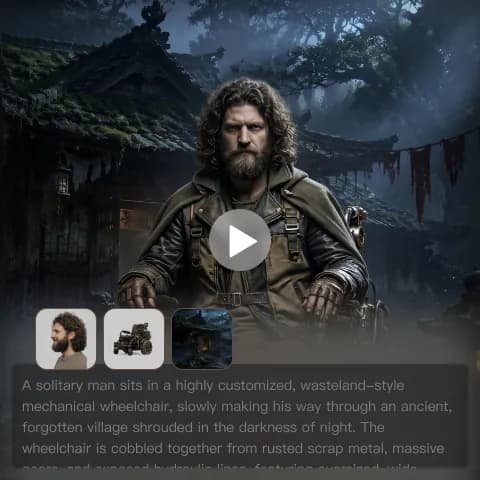
Seedance 2.0 is an AI video generation model designed for creators who want fast results and predictable control—and you can quickly explore it via the Seedance 2.0 model page on VideoWeb. If you’ve ever typed a prompt, hit generate, and then watched the output drift away from your idea—this guide is here to fix that.
You’ll learn a simple, viewer-first workflow (what to do, in what order), plus a copy/paste prompt library sourced from published online prompt articles. At the end, you’ll also get a practical place to try similar workflows directly using VideoWeb’s Seedance 2.0 AI video generator.
Who this guide is for
- Beginners who want a reliable way to get their first usable clip.
- Short‑form creators making TikTok / Reels / Shorts.
- Marketers creating product, lifestyle, and promo videos.
- Storytellers doing quick previsualization (previz) for films, games, and comics.
If you want a “recipe” you can repeat rather than random trial-and-error, you’re the target reader—and it pairs perfectly with a hands-on test run of Seedance 2.0 inside VideoWeb.
How Seedance 2.0 generation works (a viewer-first mental model)
Before you touch settings, it helps to understand what the model is trying to do.
Seedance 2.0 typically performs best when it can clearly answer these questions:
- What am I looking at? (subject + environment)
- What is happening? (one main action)
- How is it filmed? (shot type + camera movement)
- What does it feel like? (style + lighting)
- How does it flow? (pacing, cuts vs. continuous shot)
When prompts fail, it’s usually because one of those answers is missing—or because the prompt tries to do too much at once.
A useful rule:
You’re not describing the world. You’re describing a shot.
The more “filmable” your prompt is, the less the model has to guess—especially when you test it on a dedicated interface like the VideoWeb Seedance 2.0 page.
Quick start tutorial: Text-to-video in 5 minutes
This is the simplest way to get results you can actually use (and it’s the fastest path to learning what Seedance responds to).
Step 1: Choose your mode (Text-to-Video)
Look for a Text-to-Video workflow (often abbreviated as T2V).
If your interface offers multiple modes (text-to-video vs. image-to-video vs. multi-frame), start with text-to-video first unless you need strict character continuity. If you want a quick sandbox to practice, open Seedance 2.0 on VideoWeb AI and begin with a single, simple prompt.
Step 2: Set format (aspect ratio, duration, resolution)
Choose settings based on where you’ll post:
- 9:16 for TikTok/Reels/Shorts
- 16:9 for YouTube and cinematic widescreen compositions
- 1:1 for square feeds
Then choose a duration you can iterate quickly on (often 5–10 seconds is ideal). Short clips are easier to refine and easier to keep coherent.
If the UI lets you pick resolution, start with a standard quality setting while iterating. Once the motion and composition are right, then generate at higher quality.
Step 3: Write a clear prompt (use the recipe below)
Use the “Prompt Recipe” in the next section. Keep it specific.
Step 4: Generate variants
Don’t judge Seedance 2.0 from a single generation. Make 2–4 variations, then compare:
- Which version matches your subject best?
- Which version has the best camera motion?
- Which version has the best pacing?
Step 5: Iterate with one change at a time
This is the single biggest habit that makes results consistent.
If you change everything at once, you’ll never know what helped.
Instead, change one lever per iteration:
- Add or remove a camera move
- Simplify the action
- Swap style/lighting words
- Add “single continuous shot” to reduce chaotic cuts
Once you build this habit, you’ll get reliable improvements whether you generate locally or through the Seedance 2.0 tool listing on VideoWeb.
If your UI supports multimodal references: how to use @AssetName
Some Seedance 2.0 experiences support “reference” workflows—like anchoring a character, an outfit, a location, or an art style.
When this is available, you’ll often see an option to add assets (images, frames, clips, or audio) and reference them in your prompt using an @Name pattern.
When to use references
Use references when you need consistency:
- The same character across multiple scenes
- A specific face/outfit you don’t want to drift
- A consistent location layout
- A stable product shot angle
Good naming habits
Name assets clearly so your prompt stays readable:
@HeroFace(character identity)@Outfit(clothing or armor)@CityStreet(environment)@BrandPack(logo palette or product style guide)@MusicBeat(rhythm anchor)
Then reference them consistently. If your prompt calls the asset different names each time, you’re making the model guess.
The Prompt Recipe for Seedance 2.0 (so you can write your own)
If you only remember one thing from this guide, remember this structure:
Subject + Setting → Action → Camera → Style/Lighting → Pacing/Constraints → (Optional) Negatives
Here’s what each part does:
1) Subject + Setting
Tell the model what the viewer is looking at and where it is.
- “A college student in a small apartment kitchen…”
- “A brand mascot in a clean, modern office…”
2) Action (one main action)
Pick one action that is easy to animate.
- “opens a red envelope”
- “turns toward the camera and smiles”
- “unboxes a product and holds it up”
If you include multiple actions, you increase drift.
3) Camera (shot + movement)
This reduces randomness. Choose one:
- Shot: close-up / medium shot / wide shot
- Movement: slow dolly-in / gentle pan / handheld vlog
4) Style & lighting
Style words act like a “visual skin.” Keep it coherent.
- cinematic realism, warm tungsten
- neon cyberpunk, rainy reflections
- fantasy glow, mystical fog
5) Pacing & constraints
This tells the model how to structure time.
- “single continuous shot”
- “jump cuts between scenes”
- “smooth panning”
6) Optional negatives
If your interface supports negatives, use them lightly:
- “no text overlays” (if the model keeps adding them)
- “no extra characters”
- “no scene cuts”
If you want to practice this recipe immediately, paste your first draft into VideoWeb’s Seedance 2.0 model page and generate a few quick variants.
Published Prompt Library (copy/paste)
Below are prompt examples taken from published online prompt articles about Seedance 2.0. They’re organized by the outcome you probably want.
Viral video & social content prompts
Use these when you want scroll-stopping shorts with meme energy, quick cuts, or a “creator template” feel.
- “Create a fast-paced video of a cat knocking over objects with exaggerated reactions, meme-style captions, and quick zooms for comedic effect.”
- “Show a morning routine of a college student with upbeat background music, jump cuts between scenes, and text overlays highlighting key moments.”
- “Film a short recipe tutorial with close-up shots of ingredients, step-by-step instructions, and vibrant visual transitions.”
How to use them effectively:
- If the output feels too chaotic, remove “fast-paced” and replace it with “smooth pacing.”
- If captions look wrong, keep the visuals but remove “text overlays” and add “no text.”
Character & IP consistency prompts
Use these when your character or mascot must stay recognizable across scenes.
- “Animate a superhero performing a signature move across different city rooftops while keeping costume, hairstyle, and facial features consistent.”
- “Show a brand mascot interacting with multiple environments, such as a park, office, and home, without changing its color palette or expressions.”
- “Bring a comic book hero into a new storyline, fighting villains while maintaining outfit, posture, and animation style.”
How to use them effectively:
- If identity drifts, reduce scene variety: do one environment per generation.
- If movement looks stiff, specify a camera move (“slow dolly-in”) and one body action (“turns and raises a hand”).
Style & VFX transfer prompts
Use these when you want a strong visual transformation.
- “Transform a daytime city street into a neon-illuminated cyberpunk environment with rain reflections, animated signs, and moving vehicles.”
- “Apply a dramatic cinematic style to a football highlight clip with slow-motion kicks, dynamic camera angles, and vivid color grading.”
- “Convert a forest animation into a magical fantasy scene with glowing plants, floating lights, and mystical fog effects.”
How to use them effectively:
- Choose one dominant effect: neon rain reflections or floating lights—too many can blur the result.
- Add a constraint like “single continuous shot” if the model keeps cutting.
Brand marketing & campaign prompts
Use these for clean product storytelling.
- “Show a product unboxing with close-up shots, animated text highlighting features, and smooth panning to focus on brand logos.”
- “Create a lifestyle ad showing people using the product in different daily scenarios, keeping brand colors and logo visible.”
- “Film a promotional offer with animated countdowns, text overlays showing discounts, and bright brand-themed visuals.”
How to use them effectively:
- If the brand logo becomes unreadable, remove “text overlays” and add “logo clearly visible.”
- For UGC-style ads, swap “smooth panning” with “handheld smartphone vlog style.”
Film / game / creative previz prompts
Use these when you’re blocking action and camera beats.
- “Storyboard a chase scene in a busy city with multiple camera angles, dynamic character movements, and realistic environmental interactions.”
- “Visualize a fantasy battle between heroes and monsters in a forest with magic effects, detailed terrain, and animated camera sweeps.”
- “Create a cinematic intro for a short film with a character entering a dimly lit room, dramatic camera pans, and suspenseful music.”
How to use them effectively:
- If multiple angles cause confusion, change “multiple camera angles” to “single tracking shot.”
- If combat becomes messy, pick one hero action (“casts one spell”) rather than “battle.”
Frame-to-frame “smooth transition” prompt
Use this when you have a first frame and last frame and want the motion to feel natural.
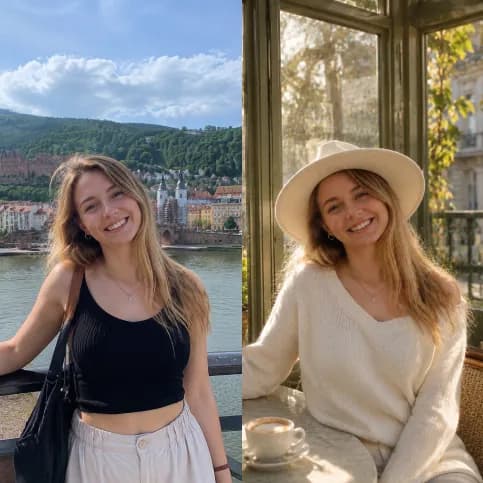
- “A smooth, natural video transition between the first and last frame showing young girl kids. The girls gently move, blink, and smile with soft, realistic facial expressions. Subtle head and hand movements add life, with natural body motion and calm energy.”
How to use it effectively:
- Replace “young girl kids” with your subject (“a robot,” “a chef,” “a mascot”).
- Keep the motion words subtle: blink, breathe, slight head turn.
Tip: If you want to quickly A/B these prompts, drop them into the Seedance 2.0 generator on VideoWeb and run 2–4 variants before you rewrite anything.
Troubleshooting checklist (fast fixes)
If your output isn’t working, don’t panic—use this quick diagnostic.
Problem: the subject changes (drift)
Try:
- Reduce to one subject + one action
- Remove scene changes
- Add “keep outfit and face consistent”
- Use a reference asset workflow if available
Problem: motion looks jittery or chaotic
Try:
- Replace “dynamic” with “smooth”
- Add “single continuous shot”
- Specify one camera move only (or none)
Problem: pacing feels wrong
Try:
- For short-form: “jump cuts between scenes”
- For cinematic: “slow dolly-in, single shot, smooth panning”
Problem: wrong framing for TikTok
Try:
- Set 9:16 from the start
- Prompt “centered composition, subject framed for vertical video”
When you’re troubleshooting, it helps to keep everything else constant and re-run the same prompt set on VideoWeb Seedance 2.0 so you can see which single change fixed it.
Recommended next step: try VideoWeb tools
If you want a practical playground for these prompt styles—text-driven, image-driven, and remix workflows—try VideoWeb AI:
- Seedance 2.0 model page: Try Seedance 2.0 on VideoWeb
- Text → Video: VideoWeb Text to Video
- Image → Video: VideoWeb Image to Video
- Photo → Video: VideoWeb Photo to Video
- Video → Video (restyle/remix): VideoWeb Video to Video
- Prompt helper: VideoWeb AI Video Prompt Generator
A simple way to practice:
- Pick one prompt from the library.
- Generate 2–4 variations.
- Fix one issue (camera, pacing, style, or drift).
- Repeat until the clip is consistent.
Once you do that a few times, Seedance-style prompting stops feeling like luck and starts feeling like craft.